Google Docs to Video: Turn a Document into a Video
Turn a Google Doc into a video: which download format to pick, how to cut the doc down to a script, and a worked example from a four-page policy to copy.
To turn a Google Doc into a video, make a copy of the doc, cut it down to the few points the viewer needs, and rewrite those points the way you would say them. Then download it with File > Download as Word (.docx), PDF or plain text, or copy the text, and give it to a video tool or record a voiceover yourself. The download is the easy part; the cutting is what makes the video watchable.
A document is written to be read at the reader's pace, with tables, footnotes and "see section 3". A video is heard once, at the speaker's pace. This guide walks through the full route from a Google Doc to a video, with a worked example you can copy.
Step 1: Decide what the video is for
Before touching the doc, write one sentence: "After watching, the viewer can..." A policy doc might become "...submit an expense claim correctly the first time." A lesson doc might become "...explain why the seasons change."
That sentence decides what stays. Most docs carry far more than one short video can, and that is fine. The doc stays the full reference; the video is the way in.
If the doc covers several separate tasks, plan several videos. Two to three minutes per idea is a good target, which is roughly 250 to 400 words of narration.
Step 2: Work on a copy, not the original
In Google Docs, choose File > Make a copy and work there. You will delete a lot, and the original should stay intact for readers and for checking facts later.
Before you start cutting:
- Resolve comments and suggestions. Accept or reject every suggested edit, so the text you work from is the agreed version.
- Check you have the latest version. If several people edit the doc, look at File > Version history to see what changed recently.
- Note who owns the content. The person who wrote the policy or lesson should check the finished video.
Step 3: Cut the doc down to a script
This is where most of the work is. Go through the copy with three passes.
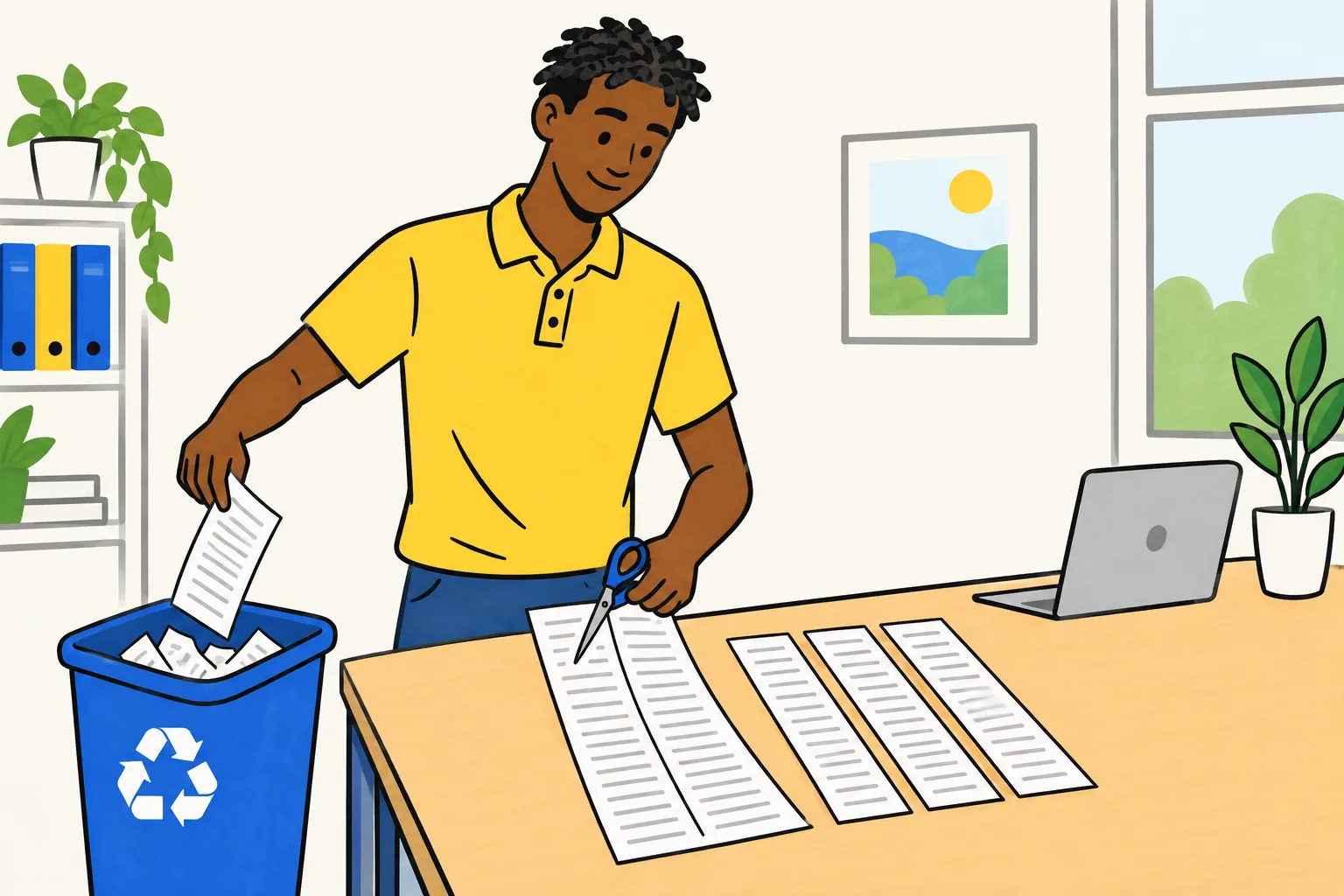
Pass 1: delete what the viewer does not need to act. Version tables, approval history, definitions nobody disputes, legal boilerplate, edge cases that affect a handful of people. Keep the main rule, the steps and the one mistake people make.
Pass 2: one heading, one idea. Use Heading 1 or Heading 2 styles for each point you keep. Each heading will become roughly one scene, so if a section makes three points, split it into three headings.
Pass 3: rewrite for the ear.
- Turn tables into sentences: "Meals up to 25 dollars a day, hotels up to 120 a night."
- Say abbreviations in full: "the finance team", not "FT".
- Replace "see section 4.2" with what section 4.2 says, or cut it.
- Keep sentences short and use "you".
- Read it aloud. Anything you stumble on, rewrite.
Charts and images in the doc will not explain themselves in a video. If a chart makes a point the viewer needs, write that point as a sentence.
Step 4: Download the doc in the right format
Google Docs downloads from File > Download, then a format. Checked on Google's Docs help pages and Google's Drive export format reference on 2026-10-28, the formats are:
| Format | Good for |
|---|---|
| Microsoft Word (.docx) | Most video and editing tools; keeps headings |
| PDF (.pdf) | Sharing a fixed layout; widely accepted as an upload |
| Plain text (.txt) | The cleanest words, no formatting at all |
| Markdown (.md) | Keeps headings and lists as simple text marks |
| OpenDocument (.odt) and Rich Text (.rtf) | Other word processors |
| Web page (.html, zipped) | Putting the content on a website |
| EPUB (.epub) | E-readers |
For making a video, Word (.docx), PDF or plain text cover almost every tool. If a tool rejects a Word file you saved elsewhere, check it is .docx and not the older .doc format.
You can also skip the download. Select all the text in the doc, copy it, and paste it into the tool's text box. For a trimmed script of a page or two, this is often the fastest route.
One caution about links: a Google Doc shared only with named people opens a sign-in page for everyone else, so a tool given that link usually cannot read it. Download the file or paste the text instead.
Step 5: Turn it into a video
There are three common ways:
- Record yourself. Read the script as a voiceover over slides or simple pictures. Free, but slow to redo when the doc changes.
- Slides with narration. Google Slides or PowerPoint, one slide per heading, then record. Fine for a few points, though slides tend to fill up with text.
- An AI document-to-video tool. Upload the file or paste the text with a short instruction about the viewer, and it writes the narration and pictures. Fastest, but check every line against the doc.
Whichever you choose, give the person who owns the content five minutes to watch it before it goes out. Our document to whiteboard video guide covers the review in more detail, and the PDF to video guide helps when the source is already a PDF.
Worked example: a four-page expenses policy
Imagine a Google Doc called "Travel and expenses policy", four pages long, with these headings:
1. Purpose and scope. 2. Definitions. 3. Approval before travel. 4. Booking travel. 5. Daily limits (table by city). 6. Meals and entertainment. 7. Receipts and claims. 8. Deadlines. 9. Exceptions. 10. Document history.
Goal: after watching, a new employee can claim expenses correctly the first time.
What gets cut: purpose and scope, definitions, the full city table, exceptions and document history. They stay in the doc, and the video says where to find it.
Outline you can copy (two minutes, about 300 words):
- The moment. You are back from a work trip with a pocket full of receipts. Here is how to get your money back without a reminder email.
- Ask first. Get your manager's approval before you book. Claims for unapproved trips can be refused.
- Book through the travel tool. Flights and hotels booked elsewhere are not refunded, except in an emergency.
- Know the daily limits. Each city has a daily amount for meals and a nightly amount for hotels. The table is in the policy; check it before you go.
- Keep every receipt. Photograph it the same day. No receipt, no refund.
- Claim within 30 days. Submit the claim in the expenses app with the receipts attached.
- The common mistake. Claiming alcohol or a partner's meal. Neither is covered.
- Recap. Approve, book through the tool, stay within limits, keep receipts, claim within 30 days.
Change the numbers and names to match your own policy. A tidy version of this outline, saved as a Google Doc, is what you download or paste in Step 4.
Instruction to add when you upload the doc:
Make a 2-minute whiteboard video for new employees from this expenses policy. Cover only: approval before travel, booking through the travel tool, daily limits (say where to find the table, do not read it out), receipts, the 30-day deadline and the common mistake. Plain, friendly tone. End with a one-line recap.
Turning a Google Doc into a video with KolaVid
KolaVid turns a document into a narrated whiteboard video. Download your doc as Word (.docx), PDF, plain text or Markdown and attach it with Add a document, or paste the text straight into the box. It also takes a typed prompt, a PowerPoint file or a link to a public web page. Each drawing appears as the narrator says it, one idea a board.
Add the instruction from the worked example so it covers the right parts for the right viewer, then choose the frame: Wide 16:9 for a laptop or intranet, Tall 9:16 for phones, or Square 1:1 for a chat group.
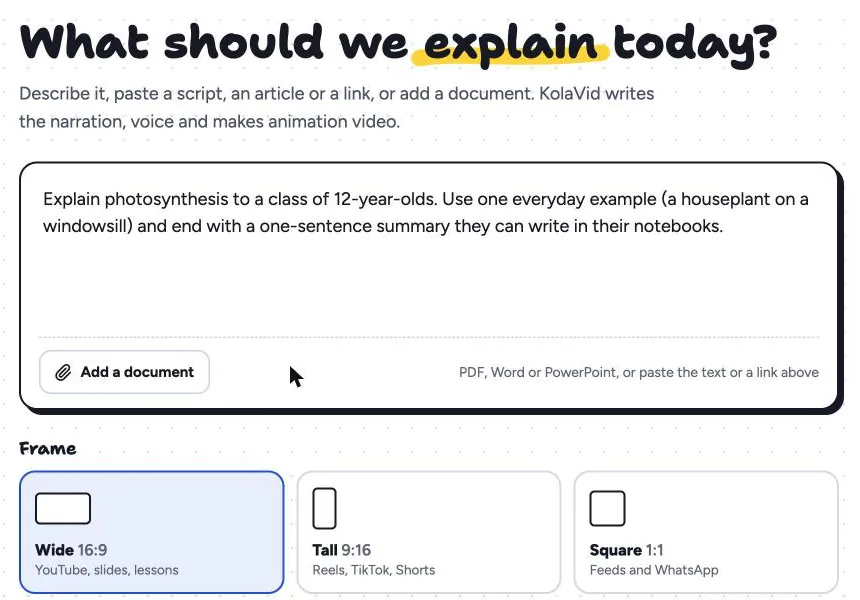
Pick the length, voice and narration language; free videos go up to 2 minutes and paid plans up to 5. It is usually ready in a few minutes. Here is a frame from a sample video made from a research paper: the board builds one idea at a time instead of putting the whole page on screen.
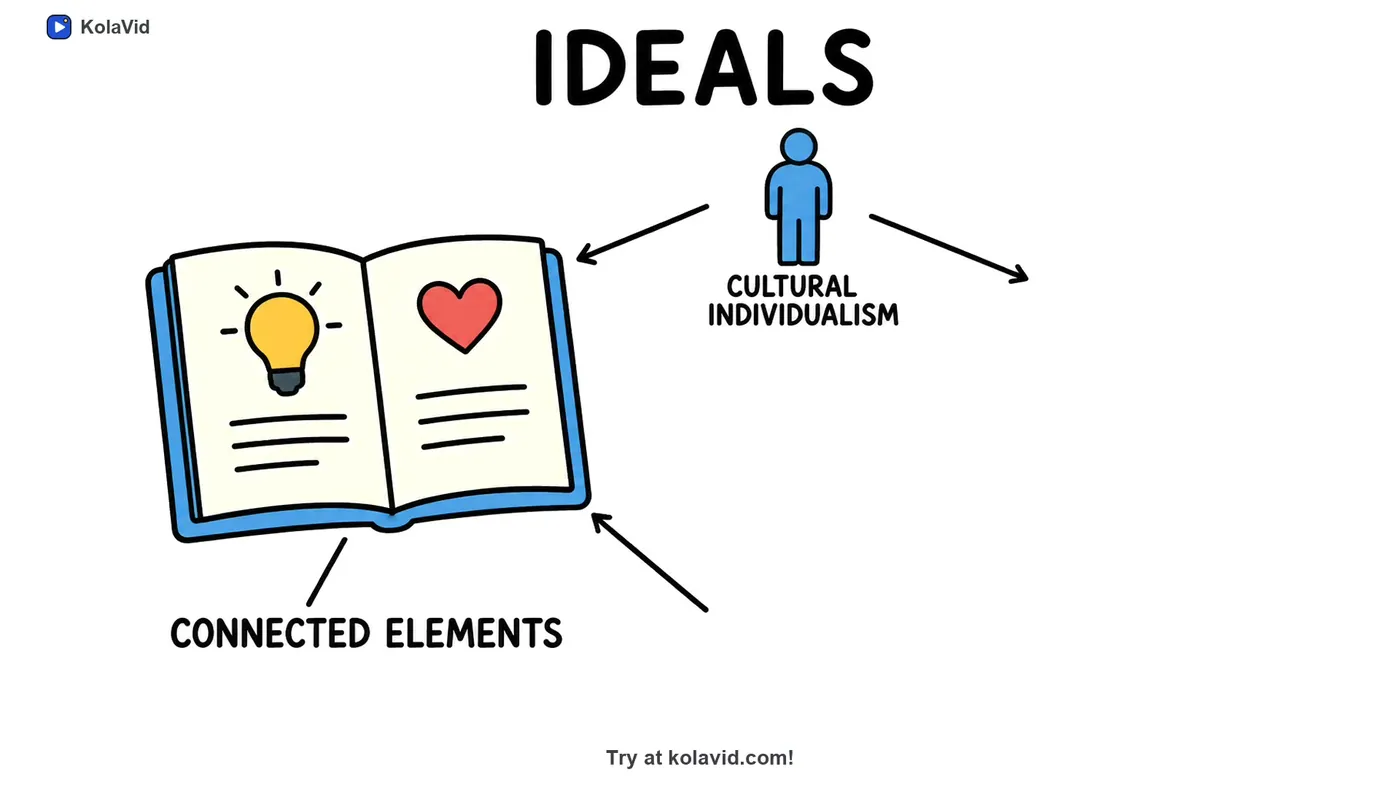
There is no editing timeline, so if a line is wrong, correct the doc or instruction and make the video again. Download the MP4 or share a link. The documents page shows more examples, and our guide to turning notes into an explainer video helps when the doc is rough notes rather than finished text.
FAQ
Can Google Docs turn a document into a video by itself?
Google Docs has no "export to video" option; its downloads are documents such as Word, PDF, plain text and Markdown. You download or copy the text and make the video with another tool or a recording.
Which format should I download a Google Doc in to make a video?
Word (.docx) is the safest choice because it keeps headings and almost every tool reads it. PDF and plain text also work well. If you only need the words, copying and pasting is quickest.
How long a document can become a two-minute video?
Any length, as long as you choose a small part of it. Two minutes is roughly 250 to 300 spoken words, so a long doc becomes several short videos, one per idea, rather than one long one.
Do I need to rewrite the doc before making a video?
Yes, at least lightly. Docs are written for reading; a video is heard once. Cut what the viewer does not need, turn tables into sentences, and read it aloud before you make the video.
Start with one doc people skip
Pick the Google Doc your team is supposed to read but rarely does, cut it to the five things that matter, and make a two-minute video from it. A free KolaVid account includes enough credits for one 2-minute video, no card needed. Link the video at the top of the doc, so readers get the short version first and the detail when they need it.