Internal Communication Videos That Explain a Change
How to explain a change to employees in a short internal communication video: the four questions to answer, an all-hands recap format and a script to copy.
The email went out on Monday, and by Wednesday the same three questions had been asked in the team chat a dozen times. A short internal communication video fixes most of that, as long as it answers four questions in order: what is changing, why, what each person has to do and by when, and where to ask. Two minutes is usually enough, and the written policy stays the official source.
Below: when a video beats an email, a structure for explaining a change to employees, an all-hands recap format, and a worked example.
When a video beats an email
Email is fine for facts that need no explaining, like an office closure. A video earns its place when the change touches how people do their daily work.
Reach for a video when:
- People have to do something differently. A new approval step, a new tool, a new way of booking leave.
- Many staff work away from a desk. Drivers, nurses, retail and warehouse teams read long emails late, if at all. A two-minute video on a phone during a break gets watched.
- The reason matters. If staff do not understand why a rule changed, they work around it.
- Several teams hear it differently. One video gives every site, shift and manager the same explanation, word for word.
Keep the written policy. The video explains it; the document is what people check against.
The four questions every change announcement must answer
Most confusing announcements answer the first question well and skip the rest. Put all four in the video, in this order.
| Question | What to say | Common gap |
|---|---|---|
| 1. What is changing? | The old way and the new way, side by side, plus the date. | Describing only the new way, so people cannot tell what is different. |
| 2. Why? | The real reason, in one or two sentences. | Vague reasons ("to improve efficiency") that sound like cover for something else. |
| 3. What do I need to do, by when? | The actions for each group, with dates. | Leaving people to work out whether it applies to them. |
| 4. Where do I ask? | A named person, channel or page. | "Contact HR", with no route for a quick question. |
Two additions help a lot:
- Say what is not changing. "Your expense limits stay the same" stops a rumour before it starts.
- Admit the cost. If the change adds a step or takes something away, say so plainly. "We know this is one more thing to remember" sounds more honest than pretending the change is pure gain, and people trust the rest of the message more.
Writing for listening, not reading
A video script is heard once, at the speed of speech. Policy wording does not survive that.
- Short sentences, one idea each. If a sentence has a comma and an "unless", split it.
- "You" and "we". "You'll submit expenses in the app" beats "Employees are required to submit expenses via the designated platform."
- Say dates the way people say them. "From the first of March", not "effective 01/03".
- One example. Walk one real case through the new process. People remember the example, not the rule.
Narration runs at roughly 130 to 150 words a minute, so a two-minute video is about 260 to 300 words. If your draft is longer, move the detail into the written policy.
All-hands summaries
The other common use is the recap: turning a 45-minute all-hands or town hall into two minutes for everyone who missed it, which is often most of the company.
A recap is not a transcript. Pick out:
- The decisions. Usually two or three. What was decided, not what was discussed.
- What changes for staff. Anything people have to do, with dates.
- The numbers that were shared, only if they are confirmed and cleared for everyone. If in doubt, leave them out.
- What happens next and when people will hear more.
- Where to ask, and where the full recording or slides live.
Have the person who led the meeting read the script first. A recap that puts words in a leader's mouth does more harm than none.
Worked example: changing the expense process
Imagine a company of a few hundred people moving expense claims from paper forms to an expenses app. The written policy runs to four pages. The video needs to cover this:
- From the first of March, all claims go through the expenses app. Paper forms stop being accepted after the end of March.
- Receipts are photographed in the app within 30 days of spending.
- Line managers approve claims in the app; finance pays them in the next pay run.
- Limits and what can be claimed have not changed.
- Questions go to the finance channel; there are two drop-in help sessions in the first week.
Goal: every employee who claims expenses knows how and when to switch, and where to get help. Format: a two-minute drawn explainer. Wide 16:9 for the intranet and Teams; square 1:1 for the warehouse WhatsApp group.
Script you can copy and adapt:
What's changing. From the first of March, expense claims move from paper forms into the expenses app. You'll photograph your receipt, fill in three fields and send it. No more forms in the post tray.
>
Why. Paper claims were getting lost between sites, and some people waited two months to be paid back. In the app, nothing gets lost, and you can see exactly where your claim is.
>
What stays the same. What you can claim, and the limits, haven't changed. Neither has the rule that you need a receipt.
>
What you need to do. Install the app from the staff portal before March. When you spend money for work, take a photo of the receipt in the app within 30 days. Choose the category, add a line about what it was for, and send it.
>
Here's an example. You buy lunch for a visiting client. At the table, you open the app, tap "New claim", photograph the receipt, pick "Client meals", and type the client's company name. Done in a minute.
>
What happens next. Your line manager approves it in the app. Finance pays it in the next pay run.
>
The deadline. Paper forms are accepted until the end of March, so nobody loses a claim during the switch. After that, it's the app only.
>
Where to ask. Post questions in the finance channel. And in the first week of March, there are two drop-in sessions to help you set up the app.
That is about 220 words, under two minutes with pauses. Notice what it leaves out: VAT rules, mileage rates and the full category list. They stay in the policy, linked under the video.

Getting the video to people
Post it where each group already looks, on the same day, with the same short message.
- Office staff: pinned in Teams or Slack, plus a link in the email announcement.
- Frontline and shift teams: WhatsApp or the staff app, and played once at the start-of-shift briefing.
- Managers: a day early, so they can answer questions.
- The intranet: next to the written policy.
The message carrying the video should state the date and the main action in text: "From 1 March, expenses go through the app. Two-minute video below." Many people will read that line and nothing else.
Checking that it worked
Views tell you who pressed play. Better signs:
- The questions in the channel are about edge cases, not the basics.
- People do the new step on time: how many claims arrive in the app in the first week, and how many still arrive on paper.
If the same question keeps coming, the video skipped it. Add a sentence and remake it, or make a short follow-up that answers that one question.
For training on a new process rather than a one-off announcement, our guide to turning an SOP into a training video goes step by step, and the employee onboarding video guide covers the videos new starters need in their first week.
Making an internal communication video in KolaVid
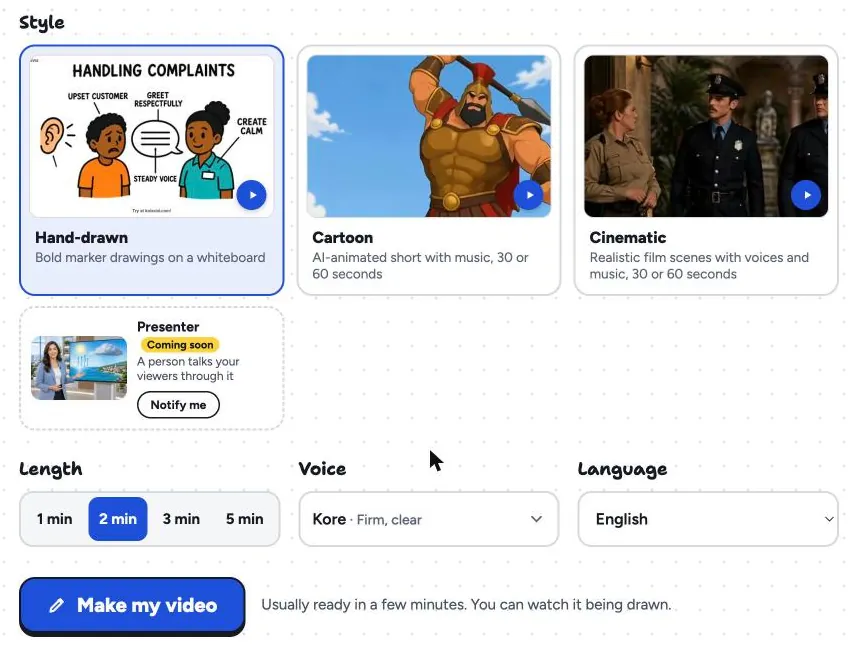
KolaVid turns a prompt, pasted script, document or web link into a narrated whiteboard video, with each drawing appearing as the narrator says it, one idea a board. For the expense example, paste the spoken lines of the script above (leave out the bold labels), or attach the four-page policy with Add a document and write: "Two-minute video explaining this change to all employees. Plain, friendly tone. Cover what changes, why, what you do and by when, and where to ask." The documents page shows how uploaded files are handled.
Choose the length (1, 2, 3 or 5 minutes; free videos go up to 2), a female or male voice and the narration language. Teams in different languages can get one version each from the same script.
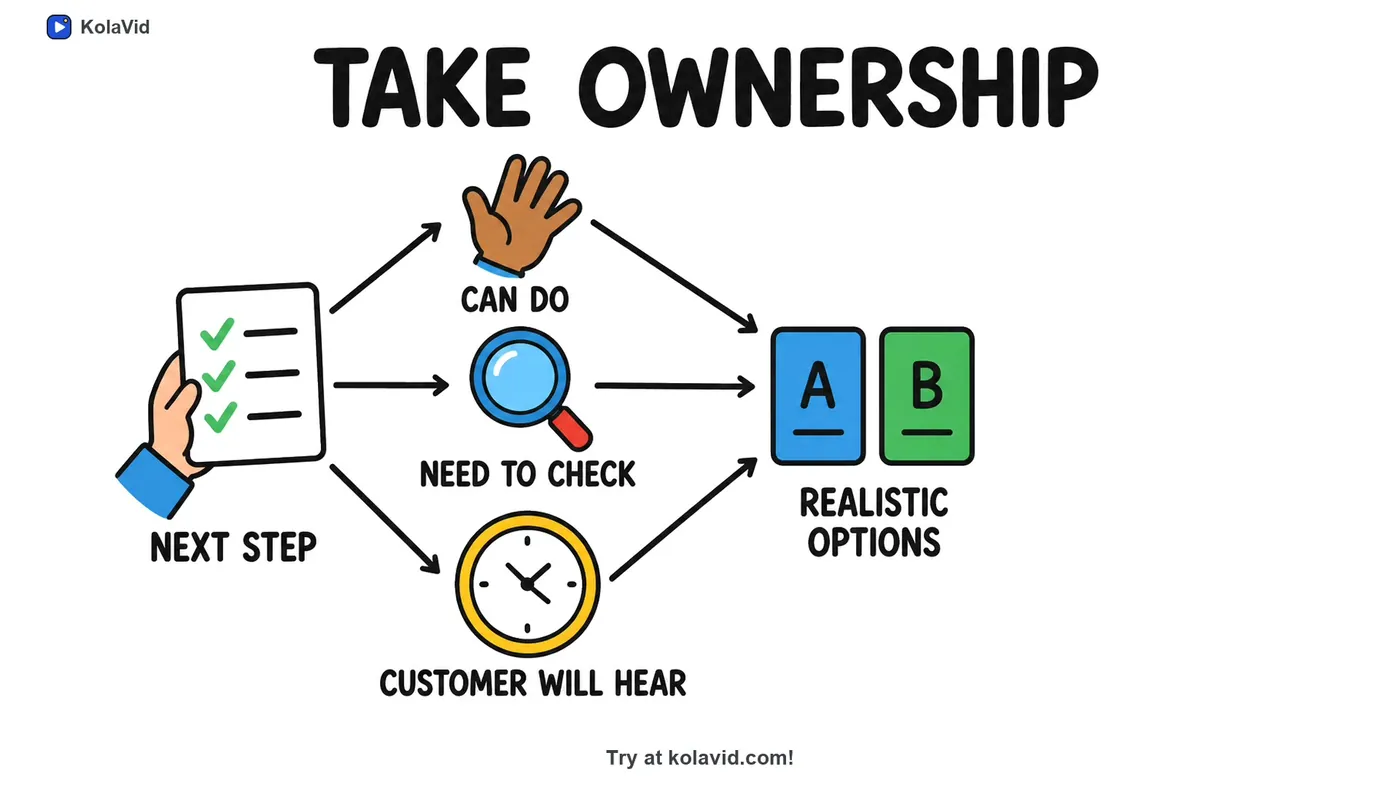
Here is a frame from a staff training sample made from a written complaint-handling procedure. Each step became its own board.
Download the MP4 for Teams, the intranet or WhatsApp, or share a link. Some honest limits for internal use: captions on whiteboard videos stay off until the viewer presses CC, so for people watching with the sound off, share the MP4 with captions burned in, or put the key line and date in the text that carries the video. There is no editing timeline, so a correction means changing the script and making the video again. And there are no team seats, so one account makes the videos for everyone. The training page has more staff-facing samples.
FAQ
How long should an internal communication video be?
Two minutes covers most single changes. If you need more than three, you are probably announcing more than one change, and each deserves its own video. All-hands recaps can run two to three minutes.
Should a leader record it instead?
For big, sensitive news such as restructuring, yes: people expect to hear it from a person, ideally live. For process and policy changes, an explainer often works better, because the point is the steps. You can also do both.
Do we still need the written policy?
Yes. The video explains the change; the written policy is the reference people check, and the version that counts if there is a dispute. Link each from the other and make sure they say the same thing.
How do we reach staff who don't read email?
Send the video where they already are: a WhatsApp group, the staff app or the start-of-shift briefing. A square or vertical version is easier to watch on a phone.
Start with your next change
Take the next announcement on your list, answer the four questions in one sentence each, and turn those sentences into a two-minute script. If you want to see it drawn without recording anything, a free KolaVid account includes enough credits for one 2-minute video, no card needed.