How to Write a Prompt for an Explainer Video
How to write an AI video prompt for an explainer: a six-part formula, seven before-and-after prompts for lessons and business, and the mistakes to avoid.
A good prompt for an explainer video names six things: who is watching, what they should know or do afterwards, one concrete example, the length, the tone, and what to leave out. Write those in two to five plain sentences and an AI video tool has almost nothing left to guess. "Make a video about inflation" leaves all six open, which is why it comes back generic.
This guide gives you the formula as a template you can copy, then seven before-and-after prompts across school subjects, staff training and business, and the mistakes that most often make an AI video vague.
Why short prompts give vague videos
An AI video generator has to decide how much the viewer knows, which example to use, how deep to go and what to skip. When the prompt does not say, it picks the safest middle answer: a video for "a general audience", which in practice means nobody in particular.
Each part of the formula below removes one of those guesses. You do not need clever wording, just what you would tell a colleague you asked to explain something for you.
The six-part prompt formula

1. Audience
Say who is watching and what they already know. "Year 7 students who have never heard of the word" and "new warehouse staff in their first week" lead to very different videos, even on the same subject. Age, job and prior knowledge are the three most useful details.
2. Goal
Finish this sentence: "After watching, the viewer can..." Pick something you could check: explain why, follow the steps, choose between two options, avoid a specific mistake. "Understand photosynthesis" is a topic. "Explain where a plant's food comes from" is a goal.
3. One example
Name one concrete example and ask the tool to use it throughout. A houseplant on a windowsill, a café taking card payments, a cyclist stopping at a junction. One example carried through the whole video teaches more than five examples mentioned once, and it gives a whiteboard video something specific to draw.
4. Length
Give the length in minutes, and make it honest. One idea fits in one minute. An idea with an example and a common mistake fits in two or three. A full lesson or procedure needs about five. If your tool sets length with a button, use the button and keep the prompt for the content.
5. Tone
One or two words are enough: calm and practical, friendly and simple, direct, warm. Add how to speak to the viewer if it matters ("speak to the viewer as 'you'", "no jokes, this is for a hospital ward").
6. What to leave out
This is the part people skip, and it often matters most. Tell the tool what not to cover: "skip the chemical equation", "do not mention pricing", "leave out the history, start with how it works today". Without it, the video spends a third of its time on background nobody asked for.
The template to copy
Explain [topic] to [audience, with what they already know]. After watching, they should be able to [goal]. Use [one example] throughout. Keep it [tone], about [length]. Leave out [what to skip]. End with [a recap, a question, or one action].
The last line is optional but useful. A closing recap or single action gives the video a clear end instead of trailing off.
Seven before-and-after prompts
Each "after" below is ready to paste into an AI video tool. Change the details to fit your own audience.
Science lesson
Before: Make a video about volcanoes.
After: Explain how a volcano erupts to 11-year-olds who know what melting is but not what magma is. After watching, they should be able to describe the three steps from melted rock underground to lava at the top. Use one volcano throughout and show gas bubbles building pressure, like shaking a fizzy drink. Friendly and simple, about two minutes. Leave out types of volcano and famous eruptions. End with a one-sentence summary students can copy into their books.
Maths
Before: Pythagoras theorem explained.
After: Explain the Pythagorean theorem to 13-year-olds who can square a number but have not met the theorem. After watching, they should be able to find the long side of a right-angled triangle. Use one worked example: a ladder against a wall, 3 metres from the wall and reaching 4 metres up. Calm, step by step, about three minutes. Leave out the proof. End by showing how builders use 3, 4 and 5 to check a corner is square.
Staff training
Before: Phishing awareness training video.
After: Training video for office staff who use email every day but have had no security training. After watching, they should be able to spot three warning signs in a suspicious email and know to report it rather than delete it. Use one example: an email that looks like it comes from the payroll team asking them to confirm bank details. Calm and practical, not scary, about two minutes. Leave out technical terms like spoofing and malware. End with one action: forward it to the IT team and do not click anything.
Product explainer
Before: Explainer video for our invoicing app.
After: Explain our invoicing app to freelance designers who currently send invoices as PDFs from a word processor. After watching, they should understand the one problem it solves: knowing which invoices are unpaid without checking a spreadsheet. Use one example: a designer with five clients who forgets to chase a late payment. Friendly and direct, about one minute. Leave out pricing, integrations and the full feature list. End with one line telling them they can try it free.
Customer support
Before: How returns work.
After: Explain our returns process to online shoppers who want to send something back for the first time. After watching, they should know the three steps: start the return in their account, print the label, drop the parcel at a collection point. Use one example: a pair of shoes that do not fit. Warm and reassuring, about one minute. Leave out exceptions, damaged goods and international orders. End by telling them when the refund usually arrives, in the same words as our policy page: within 5 working days of us receiving the parcel.
Personal finance
Before: Compound interest video.
After: Explain compound interest to young adults starting their first job who have a savings account but have never thought about interest. After watching, they should understand why starting to save early matters more than saving a lot later. Use one example: two friends who save the same monthly amount, one starting ten years earlier. Plain and friendly, about two minutes. Leave out formulas and investment products. Do not give financial advice. End with the one-line idea in plain words.
Internal update
Before: Video about the new expenses policy.
After: Explain the new expenses policy to sales staff who travel each week and are used to the old paper form. After watching, they should know the two things that changed: receipts are photographed in the app on the day, and claims older than 30 days are not paid. Use one example: a salesperson's two-day trip with a hotel and a train ticket. Direct and calm, about two minutes. Leave out the approval chain and the reasons for the change. End with a reminder of the 30-day limit.
None of the "after" prompts is long, but each makes the decisions a writer would make. If a number matters, like the 30-day limit, write it in so the video cannot make one up.
Common prompt mistakes
Asking for a topic instead of a goal. "A video about cash flow" could go anywhere. "A video that helps a café owner see why profit and cash in the bank are different" has a direction.
Pasting a whole document and hoping. A long paste with no instruction leaves the tool to guess what matters. If you have a document, add two lines on top: who it is for and which part to explain. Our guide to turning a document into a whiteboard video covers that in detail.
Mixing two audiences. "For customers and new staff" usually produces a video that suits neither. Make two videos.
Asking for more than the length can hold. Ten steps in one minute will be rushed or cut. Either raise the length or split the subject.
Describing the visuals in detail. In a whiteboard explainer the drawings follow the narration. Spend your words on the audience, the example and the goal; describe a picture only when one specific image matters.
Leaving out the facts that must be exact. Prices, dates, deadlines and policy wording belong in the prompt. Anything you do not give, the tool fills in on its own.
When to write a script instead of a prompt
A prompt is the right choice when you want the tool to write the narration for you. If the exact words matter, for example for compliance training, a scripted course or a YouTube channel with its own voice, write the script yourself and paste it instead. Our guide to turning a script into a whiteboard video shows how to prepare one. For more on the prompt route from start to finish, see the prompt to whiteboard video guide.
Using these prompts in KolaVid
KolaVid turns a typed prompt, pasted text or script, a document or a web link into a narrated whiteboard video, with each drawing appearing as the narrator says it. Any of the "after" prompts above can go straight into the box.
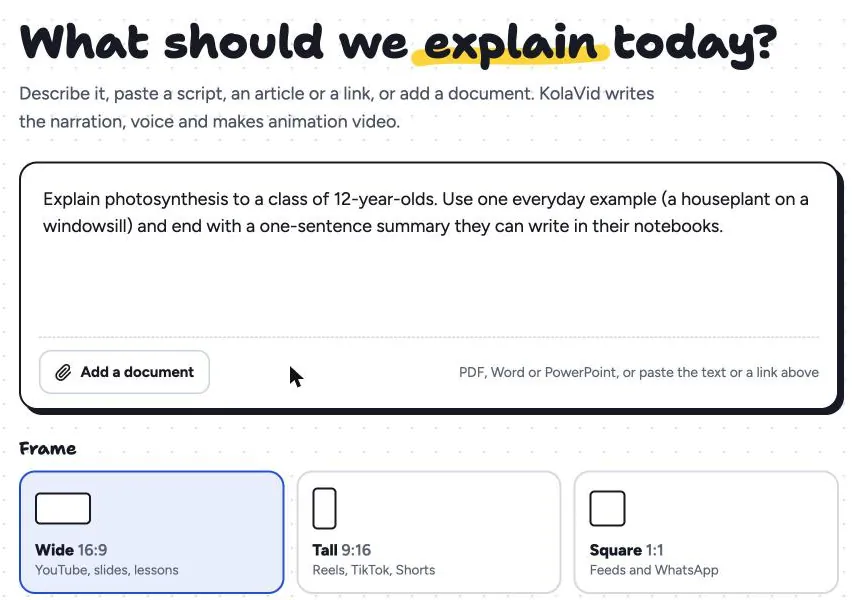
Length, voice and language are chosen with buttons and menus below the box, so you can keep the prompt for audience, goal, example, tone and what to leave out. Pick the frame for where people will watch: Wide 16:9 for lessons and YouTube, Tall 9:16 for phones, Square 1:1 for feeds and WhatsApp. Free videos run up to 2 minutes and paid plans go up to 5. The video is usually ready in a few minutes, and you can watch it being drawn.
Here is a frame from a sample made from a Pythagoras prompt with a single worked example. The board shows one idea, checking a right angle, with only the words the narrator says.
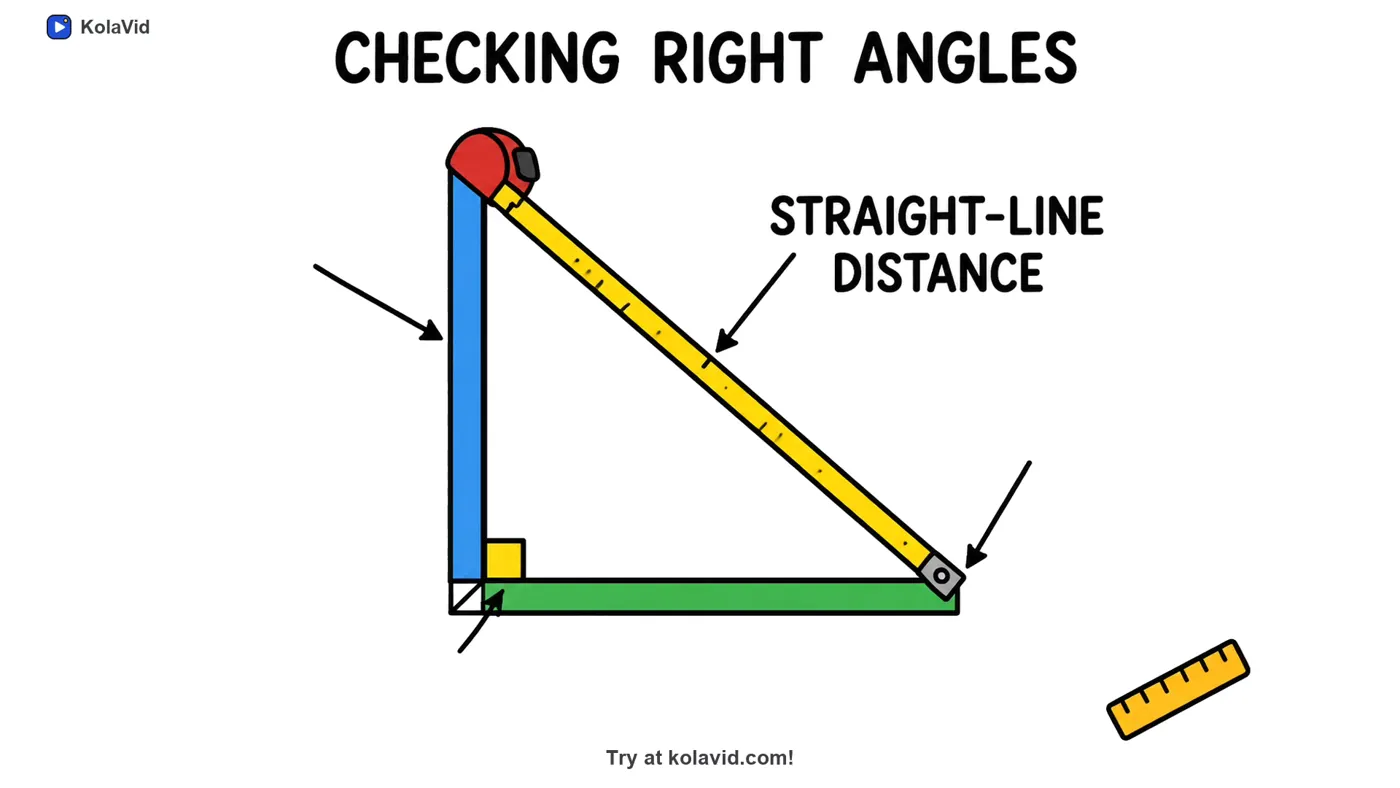
If a video comes back too general, fix the prompt: a sharper audience, one example, a "leave out" line. Then make it again. There is no editing timeline inside the video, so the prompt is where you steer. More examples by audience are on the teachers page and the marketing page.
FAQ
How long should a prompt for an AI video be?
Two to five sentences is enough for most explainers. Length is less important than covering the six parts: audience, goal, example, length, tone and what to leave out. Go longer only to add facts that must be exact.
Should I describe every scene in my prompt?
No. Describe the content and let the tool plan the scenes. If you want control over each scene, write a script or a simple storyboard instead and paste that.
Can I use the same prompt in different AI video tools?
Yes. The formula only contains what a person would need to know, so it works in any tool that writes narration from a prompt. Frame, voice and length may be menus rather than prompt text.
What if the video gets a fact wrong?
Put the exact facts in the prompt, such as numbers, names, deadlines and policy wording, and check the finished video against your source before you share it. For anything regulated, have the person who owns the subject watch it first.
Try the formula on one subject
Pick a subject you explain often, fill in the template, and compare the result with what you get from a one-line request. The difference is usually clear in the first ten seconds. A free KolaVid account includes enough credits for one 2-minute video with no card needed, which is enough to test a prompt from this page.