AI Explainer Video Generators: 4 Types Compared
AI explainer video generators come in four types: avatar presenters, stock footage, AI whiteboard and animated templates. What each makes, prices and best fit.
An AI explainer video generator turns a topic, a script or a document into a narrated video, but the tools split into four types that make very different videos: avatar presenter tools (an AI person talks to camera), stock-footage and text-to-video tools (clips matched to your script), AI whiteboard tools (the idea is drawn as it is spoken) and animated template tools (characters and scenes you adapt). Pick the type first, by what your viewer needs to see, then pick a tool inside it.
Below: what each type is good and bad at, a few named tools per type with facts from each vendor's own site, a worked example of one message made four ways, and a short test you can run before paying.
The four types at a glance
| Type | What is on screen | Usually starts from | Strong for | Weak for | Examples |
|---|---|---|---|---|---|
| Avatar presenter | An AI person speaking to camera | Script, document, slides | Announcements, policy messages, the same video in many languages | Showing how something works; anything with steps or parts | Synthesia, HeyGen, Colossyan |
| Stock footage and text-to-video | Video clips and images matched to each sentence, sometimes AI-generated clips | Prompt, script, blog link, slides | Mood, places, products, social posts | Abstract ideas and processes, where stock clips turn into decoration | Pictory, invideo |
| AI whiteboard | Drawings that appear as the narrator speaks | Prompt, script, document | How and why: processes, cause and effect, concepts | Showing a real product, place or face | KolaVid, Golpo AI, Animaker's AI whiteboard maker |
| Animated template | Cartoon characters and scenes from templates, edited on a timeline | Template, prompt or document, then editing | Brand stories, workplace scenarios with characters | Speed, if you only need the idea explained | Powtoon, Vyond, Animaker |
The lines blur (Vyond and Powtoon also offer AI avatars, and Animaker sits in two rows), but each tool has a home type, and that shapes the finished video.
Type 1: Avatar presenter tools
You type or upload a script, choose a presenter, and the tool makes a video of that person saying your words, usually with slides or footage beside them. The point is a human face without a camera, a studio or a retake.
Choose this type when the message is mainly someone talking: a welcome from a manager, a policy update, a short course intro, or the same message in many languages. A face adds warmth and authority.
Watch out for content that has to show something. A presenter cannot draw the steps of a process, so these videos lean on slides for anything visual, and a talking head next to bullet points is still bullet points.
- Synthesia. Lists 125+ avatars on Starter. The free Basic plan carries a watermark, and downloads are listed from Starter.
- HeyGen. Creator allows videos up to 30 minutes, and paid plans list video translation into 175+ languages and dialects.
- Colossyan. Aimed at workplace training. Its Professional plan includes SCORM export, which matters if your videos go into a learning management system.
Type 2: Stock-footage and text-to-video tools
These tools read your script or a link, split it into scenes, and match each sentence with stock footage, images and music, plus an AI voiceover. Newer ones also generate short clips with video models.
Choose this type when the video needs real-looking pictures: a product in use, a city, a team at work, a social post that should feel like footage. They are fast at turning a blog article into a watchable clip.
Watch out for abstract topics. If your script says "the request is sent to the server", the tool has to find a clip for it, and you get a generic shot of someone typing. The pictures fill time without explaining anything.
- Pictory. Makes videos from a script or URL and imports .pptx files. Its plans include stock footage from Storyblocks and Getty Images.
- invideo. Includes a script co-writer, AI voiceover, stock footage on paid plans and generative video models; its pricing page lists Veo 3.1, Sora 2 and Kling among them. Usage is counted in credits.
Type 3: AI whiteboard generators
A whiteboard generator writes or takes a narration, then draws one idea at a time as it is spoken: a simple picture, a few words, arrows between them. Viewers follow because only the thing being talked about appears.
Choose this type when you need to explain how something works or why: a process, a cause and effect, a concept a customer or student keeps getting wrong. It also suits lessons and training, where people need to remember the steps.
Watch out for anything that must be seen for real. A drawing of "our new backpack" is not the backpack. And most generators give less hands-on control than an editor: you change the input and make the video again.
- KolaVid (our tool). Makes a narrated whiteboard video from a prompt, pasted text or script, a PDF, Word, PowerPoint or text file, or a web link. More on it below.
- Golpo AI. Generates whiteboard explainers from a prompt and documents. On Starter, videos run 30 seconds to 2 minutes in black and white; colour starts on the Growth plan.
- Animaker's AI whiteboard maker. You enter a prompt, pick a category (Explainer, Training, Marketing or Education) and answer follow-up questions; it builds scenes, characters, voiceover and lip sync, which you can then change in its editor.
If you already know you want whiteboard, our AI whiteboard video generator buying guide goes deeper on that one type, including manual editors such as VideoScribe and Doodly.
Type 4: Animated template tools
These are animation editors with large libraries of scenes, characters and templates. AI now drafts a first version from a prompt or document, but the heart of the tool is the editor: you adjust scenes, swap characters, time each move.
Choose this type when you want characters acting out a situation (a customer call, a safety near miss), a branded look you will reuse, and the time or team to edit.
Watch out for time. A template video looks finished quickly but needs real editing to say exactly what you mean. Per-user pricing also adds up for teams.
- Powtoon. Lite allows videos up to 10 minutes, and paid plans list AI features including "AI Anything to Video", text-to-speech and AI avatars.
- Vyond. Vyond Go creates a video from a text prompt or from a .doc, .pdf, .ppt, .txt file or URL, on all plans. Characters come in Whiteboard, Contemporary and Business Friendly styles.
- Animaker. Lists 100+ whiteboard templates, characters with 200+ actions, and 2,000+ AI voices in 150+ languages, alongside its other animation styles.
Prices side by side
From each vendor's own pricing page, in US dollars. Prices change often, and plans count usage differently (minutes, credits, exports), so compare cost per finished video before you decide.
| Tool | Type | Free option | Entry paid plan |
|---|---|---|---|
| Synthesia | Avatar | Basic: 10 minutes a month, watermark | Starter $19 a month ($14 billed yearly) |
| HeyGen | Avatar | 3 videos a month, up to 1 minute, watermark | Creator $29 a month |
| Colossyan | Avatar | Free plan | Professional $59 a month billed yearly |
| Pictory | Stock footage | 14-day trial, 3 videos, 720p | Starter $29 a month ($25 billed yearly) |
| invideo | Stock and generated clips | None seen on pricing page | Starter $20 a month per seat ($10 billed yearly) |
| KolaVid | AI whiteboard | One 2-minute video, no card | Starter $19.99 a month, 5,000 credits |
| Golpo AI | AI whiteboard | One 1-minute video, watermark, no download | Starter $39.99 a month, 20 minutes |
| Powtoon | Template | Up to 3 minutes, 720p, watermark | Lite $15 a month billed yearly |
| Vyond | Template | Free trial; see their site | Starter $99 a month ($699 a year) |
| Animaker | Template and whiteboard | See their pricing page | See their pricing page |

How to choose: start from the message, not the tool
Write your explainer's main sentence first, then ask what a viewer needs to see to understand it.
- "Here is who we are and what is changing." The viewer needs a person. Avatar tool.
- "Here is what it looks like." The viewer needs real pictures. Stock-footage tool, or film it.
- "Here is how it works, or why." The viewer needs the idea built up piece by piece. Whiteboard generator.
- "Here is what to do in this situation." The viewer needs characters acting it out. Template tool, or a whiteboard video for the steps alone.
Then check four practical things:
- Where your content starts. A typed topic, a finished script, a PDF, a slide deck or a web page. Pick a tool that accepts it, or you will rewrite first.
- Edit or remake. Template and avatar tools keep an editable project. Some generators, KolaVid included, have no timeline; you change the input and make it again.
- Volume and length. Work out how many videos a month, and how long. A plan with a few exports suits polished pieces; weekly explainers need more.
- Languages and frames. Check the narration languages you need and whether you will post in landscape, vertical or square.
Worked example: one message, four ways
Say a small online shop wants a 90-second explainer: "How returns work: start the return online, print the label, drop the parcel off, and get your refund once we check the item."
- Avatar: a presenter reads the four steps with the steps listed beside them. Clear and personal, but the viewer reads the list rather than watching anything happen.
- Stock footage: clips of a laptop, a parcel, a post office counter and a bank app. Pleasant, but generic: nothing shows that the refund waits for the check.
- Whiteboard: a laptop is drawn as "start the return online" is said, then a label, a parcel with an arrow to a drop-off point, a magnifying glass over the item, and a coin returning to the customer. The order and the reason for the wait are on the board.
- Template: a cartoon customer walks through the steps in a branded scene. Friendly, and good for social posts, but it takes longest to adjust to your exact policy.
For this message, whiteboard or template fits best, because the viewer needs the order of steps. For "meet our founder", avatar or real filming wins. Our guide on how to make an explainer video covers writing that main sentence and script in detail.
Making an AI explainer video with KolaVid
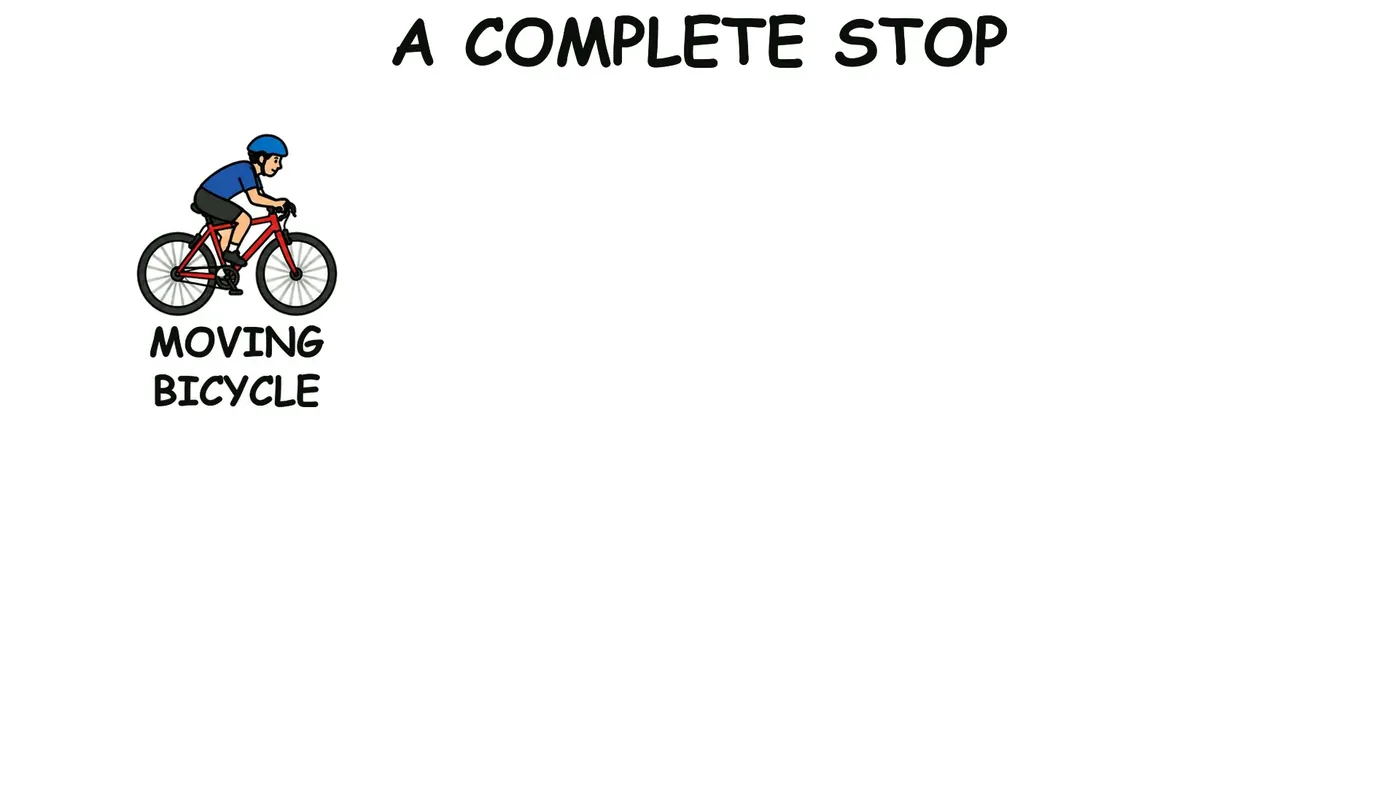
KolaVid is a whiteboard generator. You give it a prompt, your own script, a document or a link, and it writes the narration (or uses yours as written), draws each idea as the narrator says it, one idea a board, and adds the voice. Here is a frame from a sample on how bicycle brakes work: the board opens with the moving bicycle, and the rest of the stopping process is drawn as it is spoken.
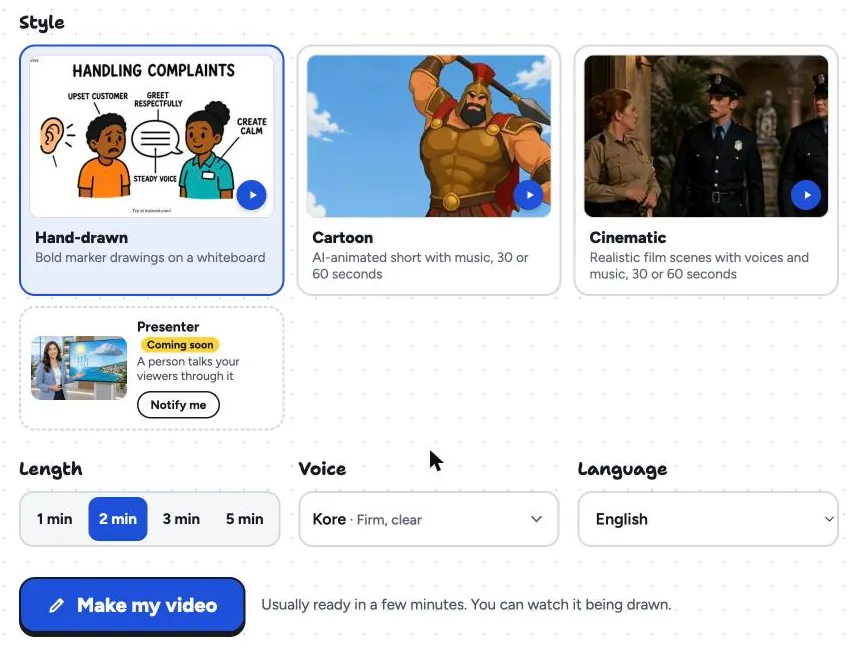
You choose the style, the length (1, 2, 3 or 5 minutes), a female or male voice, the narration language and the frame: landscape 16:9, vertical 9:16 or square 1:1. The video is usually ready in a minute or two, and you can download the MP4 or share a link.
What it does not do matters here. KolaVid has no avatars or presenters, no stock footage, no editing timeline, no character library and no team seats, and videos stop at 5 minutes. If you need a face, real footage or scene-by-scene editing, one of the other types will serve you better. Whiteboard video uses one credit a second: the free account's 120 credits make one 2-minute video with no card, with a small KolaVid mark. See sample videos on the AI whiteboard video maker page, or ideas for product and service explainers on the marketing page.
FAQ
What is the best AI explainer video generator?
There is no single best one; there is a best type for your message. Avatar tools suit talking-head messages, stock-footage tools suit product and lifestyle clips, whiteboard generators suit how-and-why explanations, and template tools suit character scenarios you want to edit. Choose the type first, then test two tools inside it.
Can AI make an explainer video for free?
Several tools have free plans or trials with limits. When we looked, Synthesia's Basic plan gave 10 watermarked minutes a month, HeyGen's free plan 3 short watermarked videos a month, Powtoon's free plan videos up to 3 minutes at 720p with a watermark, and KolaVid's free account one 2-minute video with no card.
Are AI explainer videos good enough for training?
They can be, if the type fits the content. For processes and reasons, a drawn explainer is often clearer than a presenter; for compliance tracking, check SCORM export and LMS support. Our round-up of AI tools to create training videos compares tools for that job.
Which type is cheapest per video?
It depends on how each tool counts usage. Compare the price of the plan you need with the number and length of videos it allows, not the headline monthly price. Synthesia, HeyGen, Colossyan, Pictory, invideo, Golpo AI, Powtoon, Vyond and Animaker are trademarks of their owners; KolaVid is not connected with them.