Corporate Training Videos on a Budget: 5 Options
Five ways to make corporate training videos on a small budget, from phone filming to agencies and AI tools, what drives the cost, and a four-week team plan.
You can make corporate training videos on a small budget by matching the method to the content: record the screen for software tasks, film with a phone for physical tasks, and use slides with a voiceover or an AI explainer tool for policies and processes. Save freelancers and agencies for the few videos that need a polished, filmed finish. Most of your real cost will be staff time and updates, not equipment.
This guide covers what drives training video production costs, five realistic approaches with what each costs in general terms, how to choose between them, and a four-week plan a small team can follow.
What actually drives the cost
When people price training video production, they usually think of cameras and editing software. For internal training, those are rarely the big costs. The ones that add up are:
- Staff time. Writing the script, appearing on camera, recording, editing and reviewing. Even with free tools, a day of a manager's time is not free.
- Review rounds. Every round of "can we change this line" costs more when the change means reshooting or re-editing.
- Updates. Procedures change. A video that is expensive to change either gets remade at full cost or, more often, stays out of date.
- Getting people in front of the camera. Many employees do not want to be filmed, and a staff member who appears in a video and later leaves can make it look dated.
- Polish nobody needed. Music, intros, motion graphics and branded title cards take time. For an internal procedure, viewers care whether the steps are clear.
Keep these in mind as you compare options. The cheapest approach to make once is not always the cheapest to own for two years.
Five approaches, compared
| Approach | What you pay for | Rough cost | Best for | Watch out for |
|---|---|---|---|---|
| Phone filming in-house | Staff time; perhaps a clip-on microphone and a small tripod | Low: mostly equipment you already own | Physical tasks, equipment, the real workplace | Sound quality, lighting, reshoots when things change |
| Screen recording | Staff time; recorders are built into Windows and macOS, paid ones add editing | Very low | Software tasks and system walkthroughs | Goes out of date with every interface change |
| Slides with voiceover | Staff time; presentation software you probably have | Very low | Policies, short briefings | Text-heavy slides that people read instead of listen to |
| Freelancer or agency | Their time, expertise and equipment | Quote-based; varies widely by scope, location and finish | External-facing or flagship videos, complex filming | Every change is a new quote; long lead times |
| AI video tools | A monthly subscription or credits | Low to moderate; see each tool's pricing page | Explainers, processes, policies, frequent updates | Not for exact physical movements; check each tool's limits |
A few notes on each.
Phone filming in-house
A recent phone films well enough for internal training. The weak point is almost always sound: a clip-on microphone is usually the most useful purchase you can make. Film in good light, keep the phone steady on a tripod, and film one short task at a time. Plan to reshoot whenever the equipment or layout changes.
Screen recording
Both Windows and macOS include a basic screen recorder, and most video meeting tools can record a shared screen. For a software task, record one task per video, speak as you click, and keep it short. When the interface changes, the video needs redoing, so avoid recording things that change every month.
Slides with voiceover
PowerPoint and Keynote can both record narration over slides and export the result as a video. This is the fastest route for a policy summary. The risk is slides full of text: if viewers are reading, they are not listening. Use one picture or a few words per slide and let the voice carry the content.
Freelancers and agencies
Professional production makes sense for a small number of videos that represent the company: a welcome film from leadership, a customer-facing product training, a high-visibility safety video filmed on site. Costs are quote-based and depend heavily on the number of filming days, locations, people involved and editing required, so get two or three quotes for the same written brief. Ask how changes after delivery are priced, since that is where training budgets get surprised.
AI video tools
AI tools turn a script, document or prompt into a video, using generated drawings, animation, stock footage or avatars depending on the tool. They are quick to change, because you edit text instead of reshooting. Prices and limits vary, so compare cost per finished minute, what the tool can and cannot show, and whether it fits your LMS. Our round-up of AI tools to create training videos compares several.
How to choose for each video
You do not need one approach for everything. Decide per video with four questions:
- Does the viewer need to see the real thing? A specific machine, your own building, a precise movement: film it.
- Does it happen on a screen? Record the screen.
- Will it change often? Choose a method where changes are cheap: slides or an AI explainer rather than filming.
- Who will see it? Internal staff care about clarity. A video for customers or the public may justify professional production.
For most small teams, this lands on a mix: a few filmed demonstrations, a set of screen recordings, and explainers for everything else. If you are still choosing which topics deserve a video at all, our guide to training videos for employees has a priority list.
A four-week plan for a small team
Here is a realistic plan for a team of two or three people, alongside their normal jobs, to produce a first set of ten training videos.

Week 1: Choose and assign.
- Ask supervisors what they correct most often and what new starters ask in week one.
- Pick ten topics, safety first.
- For each, note the approach (film, screen, slides or AI explainer), the source document, and the person who will review it.
Week 2: Write the scripts.
- Write each script using the same shape: why it matters, the steps, the common mistake, a one-line recap.
- Keep each one to roughly 260 to 450 words, which is two to three minutes spoken. Our guide on how long a training video should be shows the arithmetic.
- Send every script to its reviewer. Changing text now is the cheapest change you will ever make.
Week 3: Produce.
- Batch the filming into one session, in one location, with the area prepared.
- Batch the screen recordings into another session.
- Produce the explainers from the approved scripts.
Week 4: Review, publish, schedule updates.
- Each reviewer watches their video once and signs it off.
- Upload to your LMS, a shared drive or your team chat, named by task.
- Add a review date for each video to a simple spreadsheet, along with the source document.
The spreadsheet is the part people skip and later regret. It is what keeps a cheap library from becoming an inaccurate one.
Where KolaVid fits, and what it costs
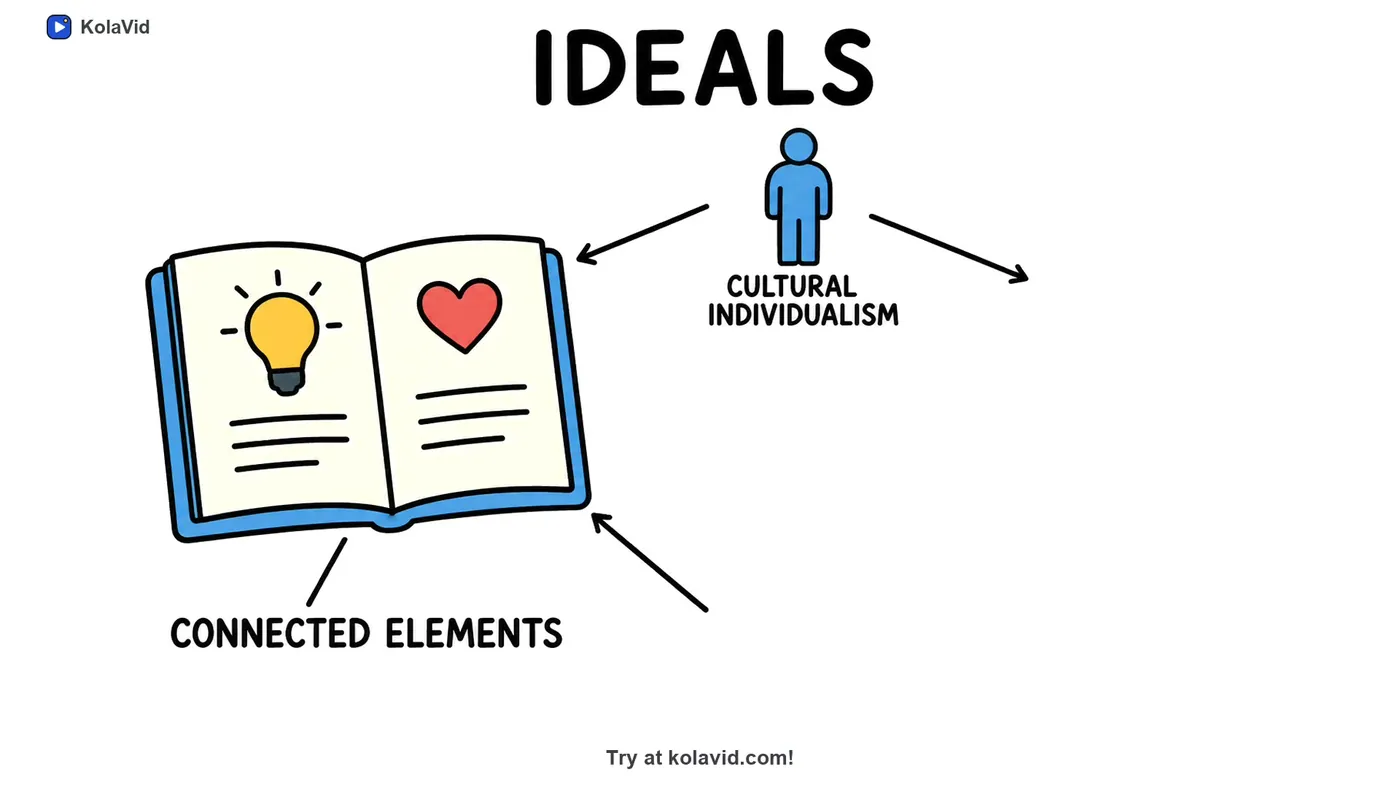
KolaVid is one of the AI options. It turns a typed prompt, a pasted script, an uploaded PDF, Word or PowerPoint file, or a web link into a narrated whiteboard video, with each drawing appearing as the narrator says it. That suits the explainer part of the plan: policies, processes, the reasons behind rules. Here is a frame from a sample video made from a research paper, to show how a document becomes drawn boards:
The pricing is published. A free account gets 120 credits, enough for one 2-minute video, with no card; free videos carry a small KolaVid mark. Whiteboard video uses 1 credit a second. The Starter plan is $19.99 a month for 5,000 credits, about 83 minutes of video or around 40 two-minute videos, so roughly 50 cents of credits per two-minute video. Creator and Studio plans give more credits. Videos run up to 5 minutes on paid plans, in 16:9, 9:16 or 1:1, with a female or male voice in many languages.
What it does not do matters for budgeting too: there is no editing timeline and no team seats, and it does not film your workplace. You change a video by changing the script and making it again. See the training page for sample videos and the documents page for how uploaded files are handled.
FAQ
How much does a corporate training video cost?
It depends on the approach. In-house screen recordings, slides and phone videos cost mostly staff time. AI tools charge a subscription or credits, which you can read on their pricing pages. Freelancers and agencies quote per project, based on filming days, locations and editing, so get quotes for the same written brief.
Can we make training videos in-house with no experience?
Yes. Start with a clear script, one task per video, and good sound. Most internal training does not need professional polish; it needs accurate steps and a review by the person who owns the procedure.
What equipment do we need for in-house training video production?
For phone filming, a recent phone, a small tripod and a clip-on microphone cover most needs. For screen recordings and slides, the tools built into your computer and presentation software are enough to start.
When is it worth paying an agency?
When a video represents the company to customers or the public, needs complex filming on location, or will be used unchanged for a long time. For internal procedures that change often, cheaper and more editable methods are usually the better value.
Spend on the script first
Whichever approach you choose, the best value for money is a clear, reviewed script. Write one this week for the task your supervisors correct most often. If you want to see it as an explainer before spending anything, a free KolaVid account makes one 2-minute video, no card needed.