PowerPoint to video
Turn a PowerPoint deck into a narrated video, notes and all.
Upload a .pptx file and KolaVid uses the slide text, the speaker notes and any narration you recorded into the deck. It turns them into a whiteboard video with each point drawn as it is said, so the talk you planned for your slides becomes a video people can watch on their own.
How to turn a PowerPoint into a video
- Sign up free and open the composer.
- Upload the .pptx file. Use the PowerPoint file itself rather than a PDF export, so the speaker notes come with it.
- Choose a frame (16:9, 9:16 or 1:1), a length of 1, 2, 3 or 5 minutes, and a female or male voice in the narration language you want.
- KolaVid writes the narration from your slides and notes and draws one idea a board. It is usually ready in a few minutes.
- Download the MP4 or share a link with your team or class.
What you get
| With KolaVid | |
|---|---|
| Start from | A .pptx file: slide text, speaker notes and narration recorded into the deck |
| Video | A narrated whiteboard video, one idea a board, each drawing appearing as it is said |
| Frames | Landscape 16:9, vertical 9:16 or square 1:1 |
| Length | 1, 2, 3 or 5 minutes (free videos up to 2 minutes) |
| Voice | Female or male, in many narration languages, including Spanish and Portuguese |
| Delivery | MP4 download or a share link |
| Price | Free: one 2-minute video, no card. Starter: $19.99 a month for 5,000 credits |
Whiteboard video uses one credit a second, so a 2-minute video is 120 credits.
What KolaVid takes from your deck
The slide text gives the order and the main points. The speaker notes give what you would say out loud, which is usually the best explanation in the deck. Narration you recorded into the slides is transcribed and used for its words; the finished video is narrated in an AI voice.
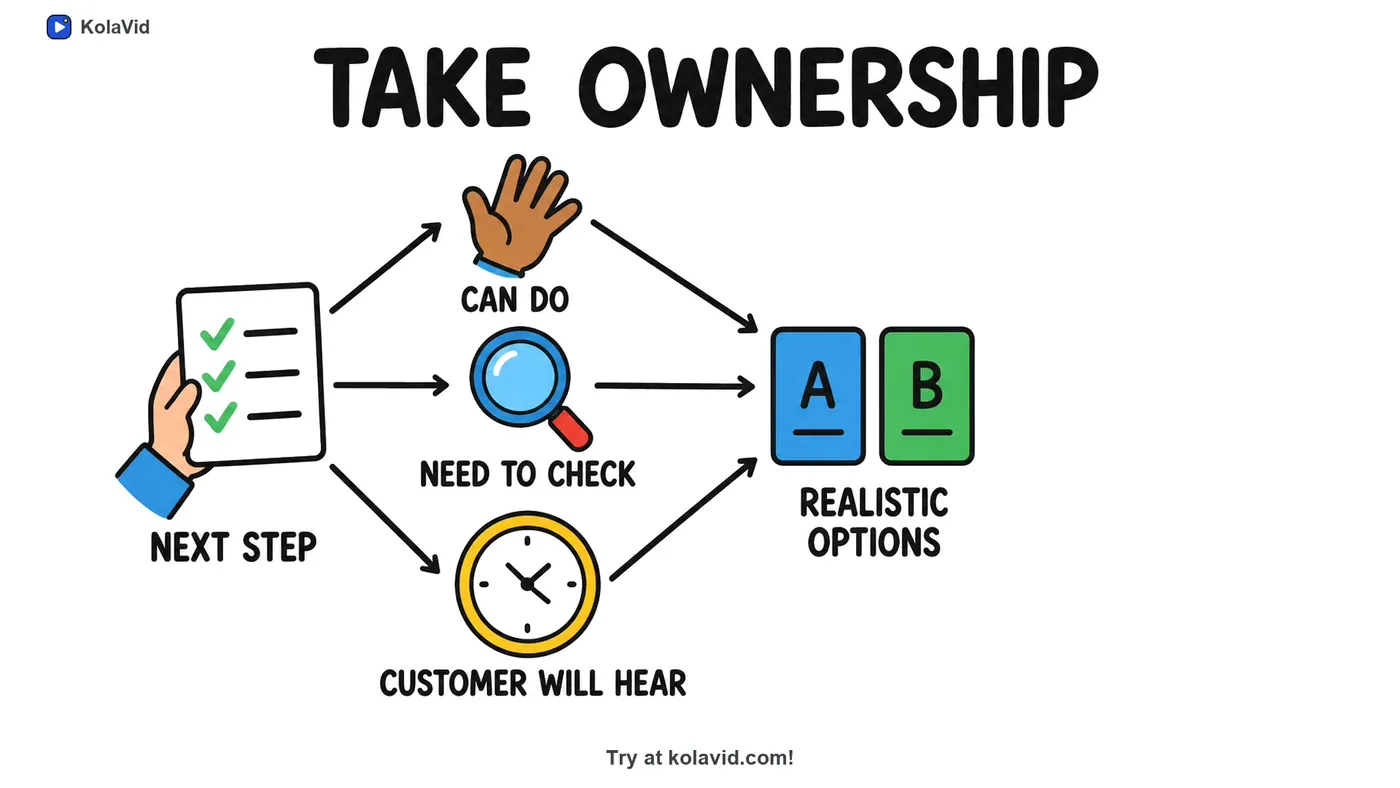
The video does not copy the look of your slides. Each point is drawn as a plain whiteboard drawing, with the narrator's own words written beside it as they are said.
Tips: getting a deck ready for video
- Write speaker notes the way you talk. Notes hold the explanation the slides leave out, so a deck with good notes makes a clearer video.
- Keep one idea a slide. A slide with eight bullet points becomes a crowded board; split it or keep the three bullets that matter.
- Match the deck to the length. A 2-minute video holds about 268 words of narration. A 30-slide deck is a 20-minute talk, so choose the slides the viewer needs or make a short series.
- Leave out the title, agenda and thank-you slides; they add length without adding anything to explain.
- Say what each chart means. Put the takeaway in the notes, such as "complaints fell by half after the new process", rather than every number on the chart.
- Use the .pptx file, not a PDF export. A PDF keeps only the slide text, without notes or recorded narration.
- Working in Google Slides or Keynote? Download or export the deck as a PowerPoint (.pptx) file first, then upload that.
- Write the decision down. If the deck ends in a recommendation, make sure it is on a slide or in the notes, not only said in the room.
- Spell out abbreviations once in the notes. Colleagues in the meeting know what "QBR" means; a new starter watching alone may not.
- Remove backup and appendix slides before uploading if they are not part of the story you want told.
- Turn a long course deck into a series. Five 2-minute videos, one for each section, are easier to assign, to finish and to find again later.
- Thin notes? If you recorded your talk into the deck, KolaVid uses those words too.
- Check the slide order before you upload. The video follows the story of the deck, so a slide left in the wrong place leaves a gap in the explanation.
- Pick the frame for where it will be watched: 16:9 for a learning platform or an intranet page, 9:16 for a phone.
Decks that make good videos
Training and onboarding decks, lecture slides, product and sales decks, policy briefings and internal updates. A deck you would otherwise present again and again becomes a video people can watch when they need it.
Does KolaVid use my speaker notes?
Yes. From a .pptx file it reads the slide text and the speaker notes and uses both as the source for the script.
I recorded narration into my slides. Is it used?
Yes. KolaVid transcribes narration recorded into the deck and uses its words. The finished video is narrated in an AI voice, female or male.
Can I upload a PDF of my slides instead?
You can, but a PDF export carries the slide text only, without the speaker notes or recorded narration.
Does it work with Google Slides or Keynote?
Download or export the deck as a PowerPoint (.pptx) file, then upload that file.
Will the video look like my slides?
No. Each point is drawn as a plain whiteboard drawing, with the narrator's words written on the board as they are said.
Is it free to try?
Yes. A free account comes with 120 credits, enough for one 2-minute video, with no card.