Canva Explainer Video: When It's Enough, When It's Not
Can you make an explainer or whiteboard video in Canva? What its video editor and SpeedPaint app do (checked 28 Oct 2026) and when a dedicated tool fits better.
If your explainer video is built from text, photos, icons and short clips that you can arrange yourself, Canva is enough, and you may already pay for it. Where it starts to strain is the classic whiteboard explainer: a narrator talking while each drawing appears at the moment it is mentioned, scene after scene. Canva can animate one picture as a drawing, but matching many drawings to a voice is manual work, and a dedicated whiteboard tool does that part for you.
This guide shows how to make an explainer in Canva, how to get a whiteboard look there, and how to tell when a different tool is worth it. Canva's features and prices below were checked on canva.com on 28 October 2026.
What Canva gives you for explainer videos
Canva is a design platform first, but its video editor has grown into a capable tool. According to canva.com, checked on 28 October 2026:
- Templates. A library of explainer video templates you customise in the drag-and-drop editor.
- A multi-layer timeline. Drag clips onto layers; trim, split and stack footage, images and text.
- Animations and transitions. One-click animations for text and graphics, custom animations and motion paths, and transitions between scenes.
- Voice. Record a voice-over, upload one, or use Canva's text-to-speech and AI voice tools: type or paste a script, pick a voice, generate it. Canva's pages give a character limit per conversion, so long scripts go in sections.
- Captions. Generate and style captions in one click; Canva lists unlimited captions as a Pro feature.
- AI video tools. Magic Studio includes AI video features such as Magic Video, and Pro adds an AI clip generator for filling gaps with generated footage.
- Export. Download as MP4 or GIF, or share a link. Magic Resize, which changes a design's size and shape, is a Pro feature.
- Watermarks. Canva says they only appear if you use a free account and add Pro or paid elements.
Pricing (canva.com/pricing, checked 28 October 2026, as shown in US dollars): Canva Free; Canva Pro at US$144 a year for one person; Canva Business at US$250 a year per person; Enterprise on quote. Canva says K-12 schools and not-for-profits can use most premium features for free. Prices vary by country, so see their pricing page for yours.
How to make an explainer video in Canva
If Canva is the tool you have, this is a workable method for a 60 to 90 second explainer.
- Write the script first. At about 130 to 150 spoken words a minute, 75 seconds is roughly 170 words. Use the shape problem, solution, how it works, benefit, one call to action.
- Split it into scenes. One sentence or two per scene, one idea each. Write the scene list down before you open a template.
- Generate or record the voice. Make the voice-over first, so the visuals follow the voice and not the other way round.
- Pick a plain template. Choose one with a white or light background and few elements. Delete what does not serve the script.
- Build each scene to its sentence. One main picture per idea, a short label in the narrator's own words, and an arrow only when it means "leads to".
- Time the animations to the voice. On the timeline, line up each element's entrance with the word that names it. This is the slow part, so be patient.
- Add captions and export. Check the captions for errors, then download the MP4.
That process gives you a clean animated explainer. Whether it looks like a whiteboard video is a separate question.
Getting a whiteboard look in Canva
Canva's whiteboard animation page points to an app called SpeedPaint, found through the Apps panel in the editor. You upload an image or a page, and it turns it into a speed-drawing style animation that you can then combine with text, music and an AI voice-over before downloading an MP4. Free users get one credit to try it; more credits are bought separately.
Three ways people use it:
- Animate a finished illustration. Design one diagram, such as a labelled water cycle, and let SpeedPaint draw it in.
- One drawn scene per idea. Make each scene as its own page, SpeedPaint each one, and place the clips in order on the timeline.
- Mix it in. Use drawn clips for key ideas and ordinary animated scenes for the rest.
What it does not do is listen to your script. Each clip draws a picture at its own pace. Making the cloud appear on the word "cloud" and the rain on "rain" means splitting pictures into separate clips and timing each one by hand. For a 60-second piece that is fine. For a five-minute lesson with forty drawings, it becomes the whole job.
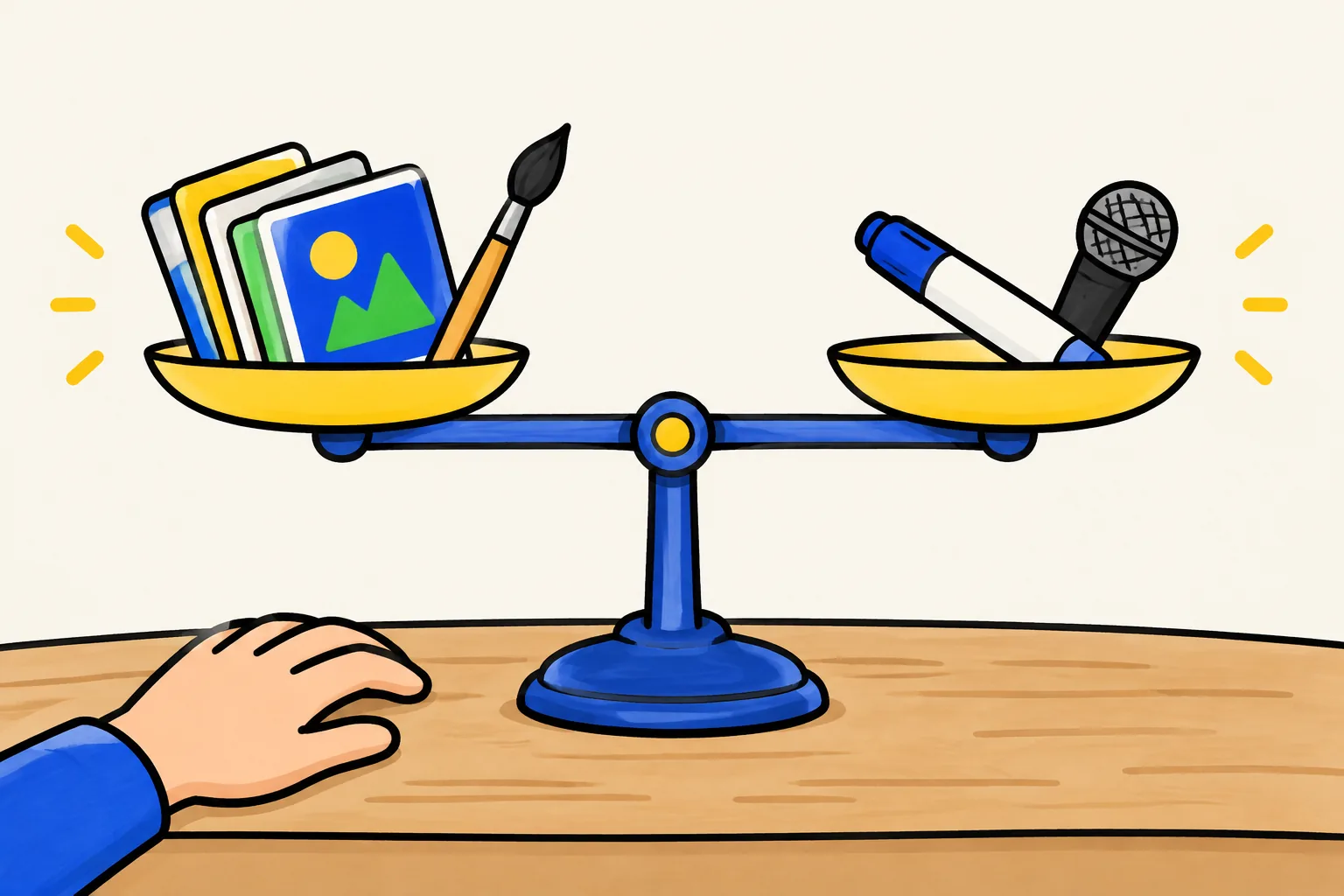
Signs Canva is enough
- You make a few explainers a year, and each one is short.
- The visuals are photos, product shots, screenshots or brand graphics, not drawings.
- You want everything in one place: the video, its thumbnail, the social posts and the slide deck, all with the same brand kit.
- You need to tweak details after export: a price, a logo, one line of text.
- A drawn look is a garnish, one SpeedPaint scene in an otherwise designed video.
Signs a dedicated whiteboard tool fits better
- The drawing-to-voice timing is the point. Lessons, processes and training work best when each picture lands on its word, and you want that by default.
- You need many videos, such as a weekly lesson, a course module or ten training procedures this quarter.
- Your topics are specific: a fault-finding procedure, a step in a chemistry experiment, a clause in a policy. Stock elements rarely fit, and drawings made for the script do.
- You start from a document. A lesson plan, an SOP or a slide deck you want turned into a narrated video without writing a separate script.
- You want hand-drawn animation with full control. VideoScribe and Powtoon are built for it; our VideoScribe alternatives comparison lists the options with prices.
If you are weighing Canva against Visme as well, our Visme alternatives guide compares both with dedicated whiteboard tools.
A dedicated option: KolaVid
KolaVid is our own whiteboard video generator, so read this section with that in mind. It does the part Canva leaves to you: deciding what to draw for each idea and revealing each drawing as the narrator says it, one idea a board.
You type a topic, paste a script or text, upload a PDF, Word or PowerPoint file, or add a web link. Then pick the frame (16:9, 9:16 or 1:1), the Hand-drawn style, a length of 1, 2, 3 or 5 minutes, a voice and the narration language.
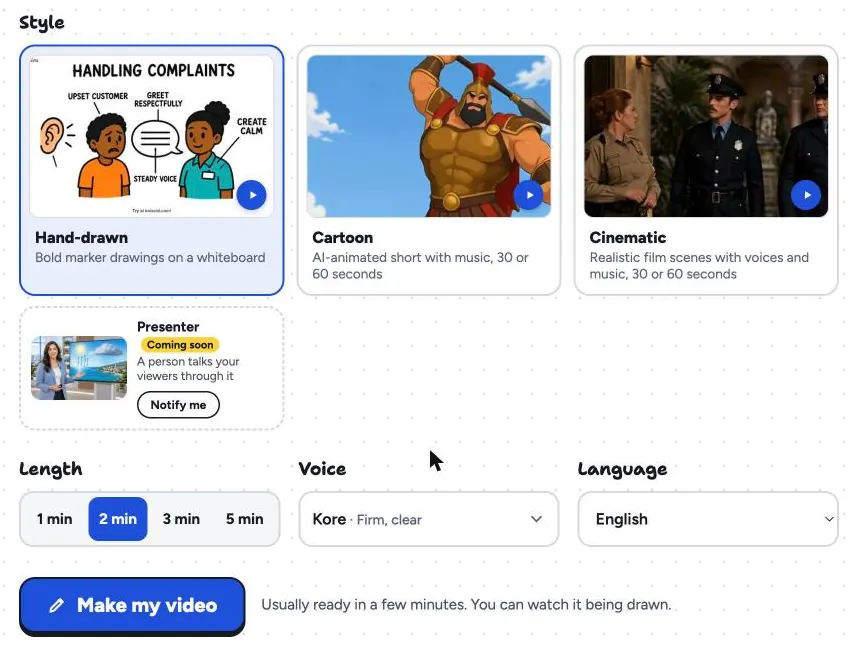
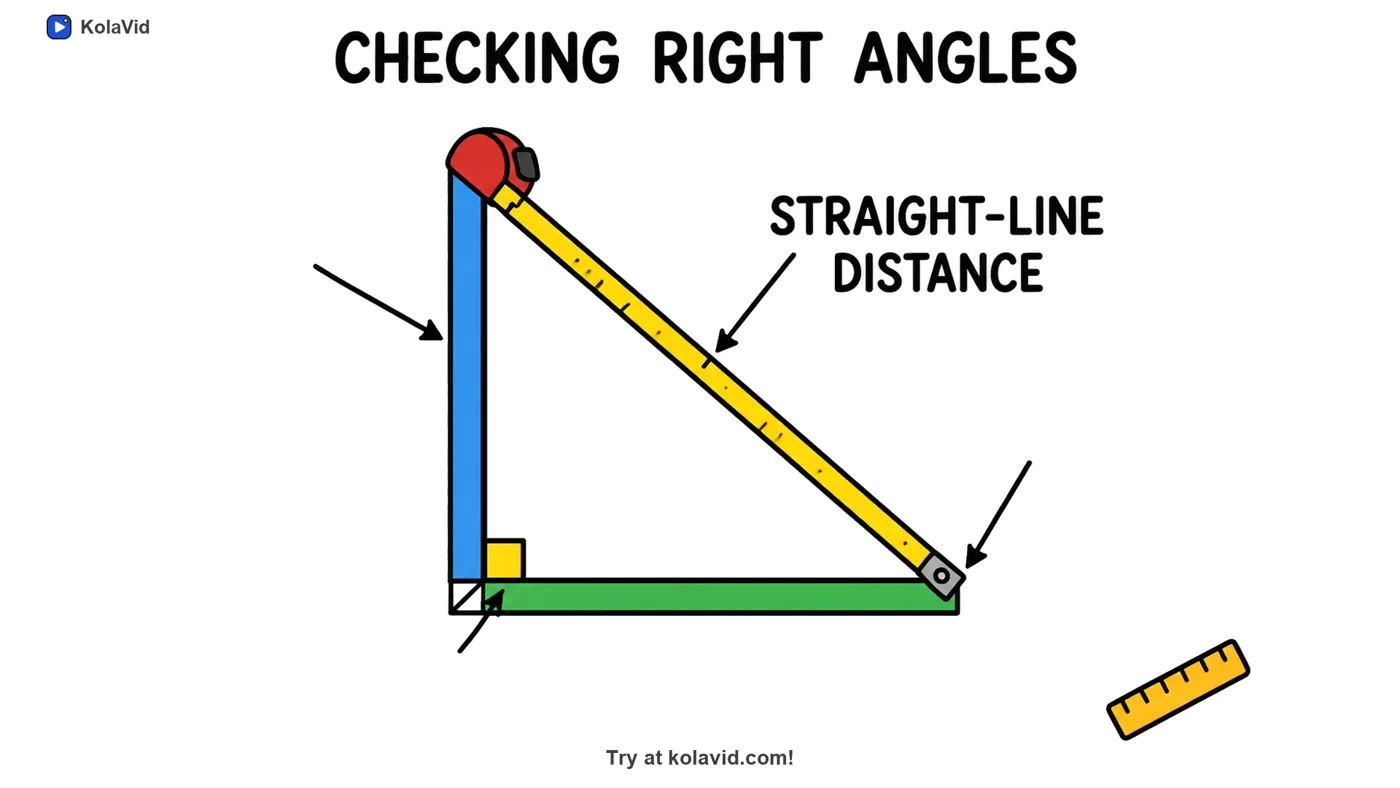
The video is usually ready in a few minutes. A prompt for a maths lesson might read: "Explain the Pythagorean theorem to 13-year-olds using a builder checking a right angle with a tape measure, and end with a one-line rule." Here is a board from a sample video on that theorem.
Be clear about what you give up compared with Canva. There is no editing timeline and no team seats; to change a video, you change the prompt or script and make it again. Videos run up to 5 minutes on paid plans and 2 minutes free. A free account makes one 2-minute video with no card, and Starter is $19.99 a month for 5,000 credits, about 40 two-minute videos. The teachers page and the AI whiteboard video maker page have sample videos.
Using both together
Many people end up with both, each doing what it is good at:
- Make the drawn explainer in a whiteboard tool from your script or document.
- Make the thumbnail, title card and social posts in Canva with your brand kit.
- If you want branded bookends, add an intro and outro around the downloaded MP4 in Canva's video editor.
This keeps Canva for design and leaves the drawing-to-voice timing to a tool built for it. For writing the prompt or script that drives the drawn part, see our prompt to whiteboard video guide.
FAQ
Can you make a whiteboard animation in Canva?
Yes, with limits. Canva's SpeedPaint app, found in the editor's Apps panel, turns an uploaded image or page into a speed-drawing style animation. Free users get one credit to try it. For a multi-scene video, you make and time each drawn clip yourself.
Is Canva good for explainer videos?
For short explainers built from designed scenes, photos and text, yes. It has explainer templates, a timeline, animations, text-to-speech and captions. It is less suited to long, drawing-heavy lessons where each picture must appear as it is spoken.
Is Canva's video editor free?
Canva Free includes the video editor and MP4 downloads. Some elements, captions without limits, Magic Resize and the AI clip generator are Pro features, and a free account shows a watermark if you add Pro elements. Check canva.com/pricing for current details.
What is the best Canva alternative for whiteboard videos?
It depends on how you want to work. VideoScribe suits people who want to place every drawing by hand, Powtoon mixes whiteboard with other animation styles, and KolaVid makes the whole narrated video from a prompt, script or document. Canva is a trademark of its owner, and KolaVid is not connected with it.