How to Make a Video Presentation: 3 Ways
How to make a video presentation from a talk or pitch: record yourself with slides, narrate the slides, or make a drawn explainer. Structure, script and tips.
To make a video presentation, pick one of three formats: record yourself presenting your slides, record your voice over the slides without your face, or turn the talk into a drawn explainer where each idea appears as you say it. Then cut the talk to its main point and three supporting parts, write it to be heard, and keep it to three to five minutes. A video presentation is not a recording of a meeting; it is a shorter, tighter version of the talk made for someone watching alone.
Below: how to choose between the three formats, how to cut a long talk down, a worked example outline for a proposal you might pitch to a leadership team, and the recording tips that make the most difference.
Live talk vs video presentation: what changes
Live, the room helps you: people ask questions, and you can see who is lost and go back. On video, nobody can interrupt, and the viewer can leave at any moment without you knowing.
That changes a few things:
- Shorter. A 20-minute live talk usually becomes a 3- to 5-minute video. Most of the cut is warm-up, repetition and the answers to questions nobody watching has asked.
- The point comes first. Live, you can build up to it. On video, say it in the first 20 seconds or people stop watching before they reach it.
- No agenda slide. "First I'll cover the background, then..." costs time and tells the viewer nothing. Just start.
- One idea on screen at a time. The viewer is listening and looking at once; a busy slide makes them choose.
- A clear ask at the end. Live, you can follow up in the room. On video, the last thing you say is what they act on.
Three ways to make a video presentation
| Format | What the viewer sees | Best for | Watch out for |
|---|---|---|---|
| Record yourself with slides | Your face in a corner or beside the slides | Pitches, updates from a leader, anything where trust in you matters | Takes practice; nerves show; reshoot to change a line |
| Narrated slides | The slides, with your voice only | Detailed content people may pause to study: numbers, diagrams, screenshots | Easy to read the slides out loud, which bores people |
| Drawn explainer (whiteboard presentation) | Simple drawings appearing as each idea is spoken | Explaining a process, a reason or a proposal to people who were not in the room | Not for showing real products, screens or detailed charts |
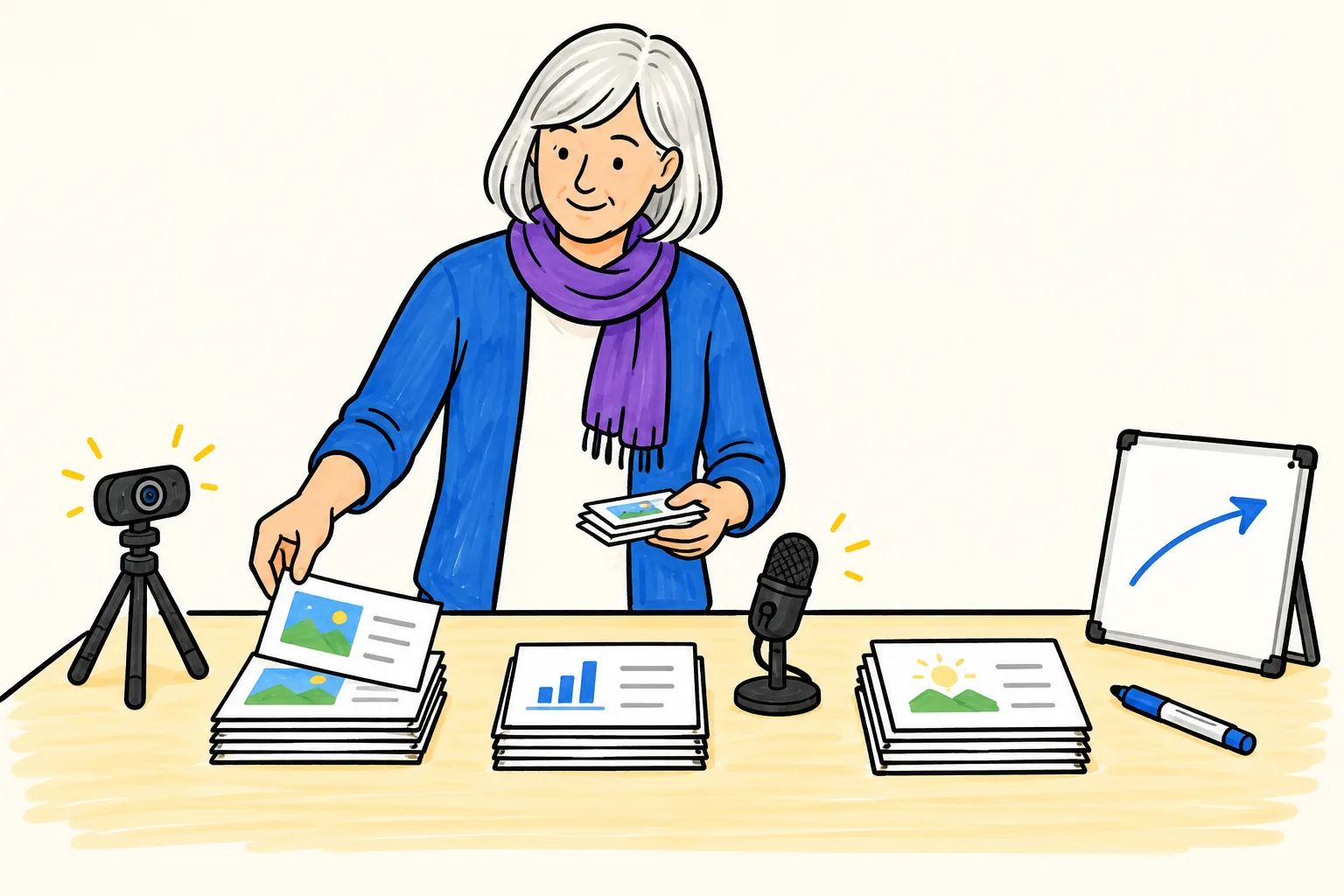
Option 1: Record yourself presenting your slides
This is the closest to a live talk. PowerPoint's Record feature can capture your voice and, if you want, your webcam slide by slide, then export a video; most video call tools can also record you sharing your screen. A face helps when the message is personal: a founder's pitch, a manager explaining a change, a teacher introducing a course.
The cost is effort: decent light and sound, a few practice runs, and a reshoot whenever a line changes. If your face adds nothing, the other two options are quicker.
Option 2: Narrated slides
Here the slides carry the visuals and your voice carries the explanation. It suits content people need to look at closely, such as a chart, a floor plan or a screenshot. You can record in PowerPoint or start from Google Slides. Our guides to turning PowerPoint into a video and converting Google Slides to video walk through each tool's steps.
The trap is reading the bullets aloud. If the slide and the voice say the same words, the viewer reads ahead and stops listening. Cut each slide to a picture or a few words, and let the voice do the explaining.
Option 3: A drawn explainer, or whiteboard presentation
A whiteboard presentation draws each idea as it is spoken: a simple picture, a label, an arrow to the next idea. Because only the current idea is on screen, the viewer follows the order of your argument without reading. It works well for proposals, processes and "why we should change this", especially for people who missed the meeting.
You can draw one yourself on a real whiteboard and film it, which takes time and a steady hand, or use an AI tool that draws it from your script or deck. Our comparison of whiteboard video and slides goes deeper into when each one teaches better.
How to structure a video presentation
Most good video presentations follow the same five-part shape, whatever the format:
- The question or problem (10-20 seconds). Something the viewer recognises: "Our weekly status meeting takes six people an hour, and most of it is updates we could read."
- Your main point, in one sentence. "I'm proposing written updates and a 15-minute call instead."
- Three supporting parts. Reasons, steps or pieces of evidence. Three is enough; a fourth usually belongs in the written proposal.
- One example. A concrete case makes the idea real: a team that tried it, a week as it would look, a customer who would benefit. Make it real or label it plainly as an illustration.
- The ask. What you want the viewer to do, and by when: "Reply by Friday if you're happy to try it for a month."
Speech runs at roughly 130 to 150 words a minute, so a three-minute video presentation is about 400 to 450 words. Write the script out in full, then read it aloud. Anything you stumble over, rewrite in the words you actually said.
Cutting a 20-minute talk to 3 minutes
Take your existing deck or talk notes and sort every slide into three piles:
- Keep: the problem, the main point, the three strongest supporting parts, the best example and the ask.
- Move to a document: detailed numbers, method, risks and alternatives, the full timeline. Link it in the message that carries the video.
- Cut: the agenda, "about me" unless it is a pitch where you are the product, repeated summaries, and slides that only existed to fill the time slot.
A slide with two ideas becomes two scenes; two slides making the same point become one.
Worked example: a proposal to a leadership team
Imagine a 20-minute deck proposing to replace a weekly one-hour status meeting with written updates and a short call. Here it is cut to a three-minute video presentation that would work in any of the three formats. Each spoken line is shortened; the full script fills each time slot with a sentence or two more.
| Part | Time | What you say (shortened) | What is on screen |
|---|---|---|---|
| Problem | 0:00-0:20 | "Every Monday, six of us spend an hour in a status meeting. Most of it is updates we could read in five minutes." | A clock and six chairs around a table |
| Main point | 0:20-0:35 | "I'm proposing written updates by Monday at 10, and a 15-minute call for decisions only." | A notepad, then a short clock |
| Part 1 | 0:35-1:10 | "Written updates are faster to read than to hear, and they stay searchable." | A stack of notes with a magnifying glass |
| Part 2 | 1:10-1:45 | "The call then only covers what needs a decision, so it stays short." | A fork in a road with a tick |
| Part 3 | 1:45-2:20 | "People in other time zones can read the updates when their day starts, instead of joining late at night." | A globe with a sun and a moon |
| Example | 2:20-2:45 | "Picture next Monday: updates in by 10, three decisions at 11, done by 11:15." | A day timeline with three ticks |
| Ask | 2:45-3:00 | "Let's try it for four weeks. Reply by Friday if you're in, or tell me what would stop you." | A calendar with four weeks marked |
Notice what is gone: the slide on meeting costs, the survey of five update tools and the risks section. They go into a one-page written proposal sent with the video, for anyone who wants the detail.
Recording tips that make the biggest difference
- Sound first. A quiet room and a microphone close to your mouth matter more than the camera. Soft furnishings help; an empty room echoes.
- Light from the front. Sit facing a window or lamp, not with one behind you.
- Look at the lens when you speak to the viewer, not at your own face on screen.
- Record in short sections. One slide or one part at a time, so a fluffed line costs ten seconds, not three minutes.
- Pause between parts. A one-second pause gives the viewer time to catch up, and gives you clean places to cut.
Making a whiteboard presentation with KolaVid
If you would rather not appear on camera or record your voice, KolaVid turns a prompt, pasted text or script, a document or a web link into a narrated whiteboard video, drawing each idea as the narrator says it, one idea a board. For a presentation you already have, upload the .pptx: KolaVid reads the slide text and the speaker notes, and transcribes any narration you recorded into the deck, and uses them as the source for the script. A PDF export of the deck carries the slide text only, so the .pptx gives a better result.
To keep your exact wording, paste your finished script instead; a pasted script is narrated as written, with drawings made to match. Add a line about the audience and the ask, such as "Video presentation for the leadership team. Calm, direct tone. End with the four-week trial and the Friday deadline."
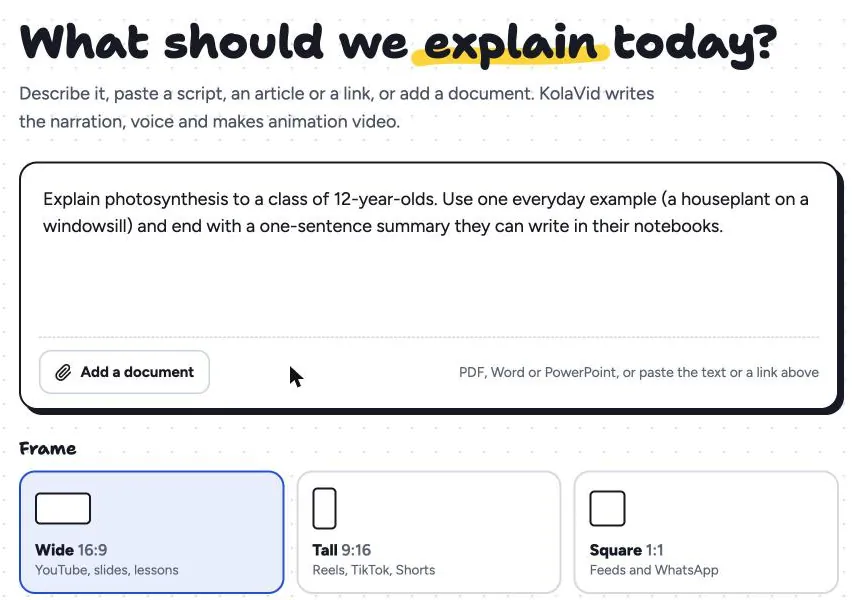
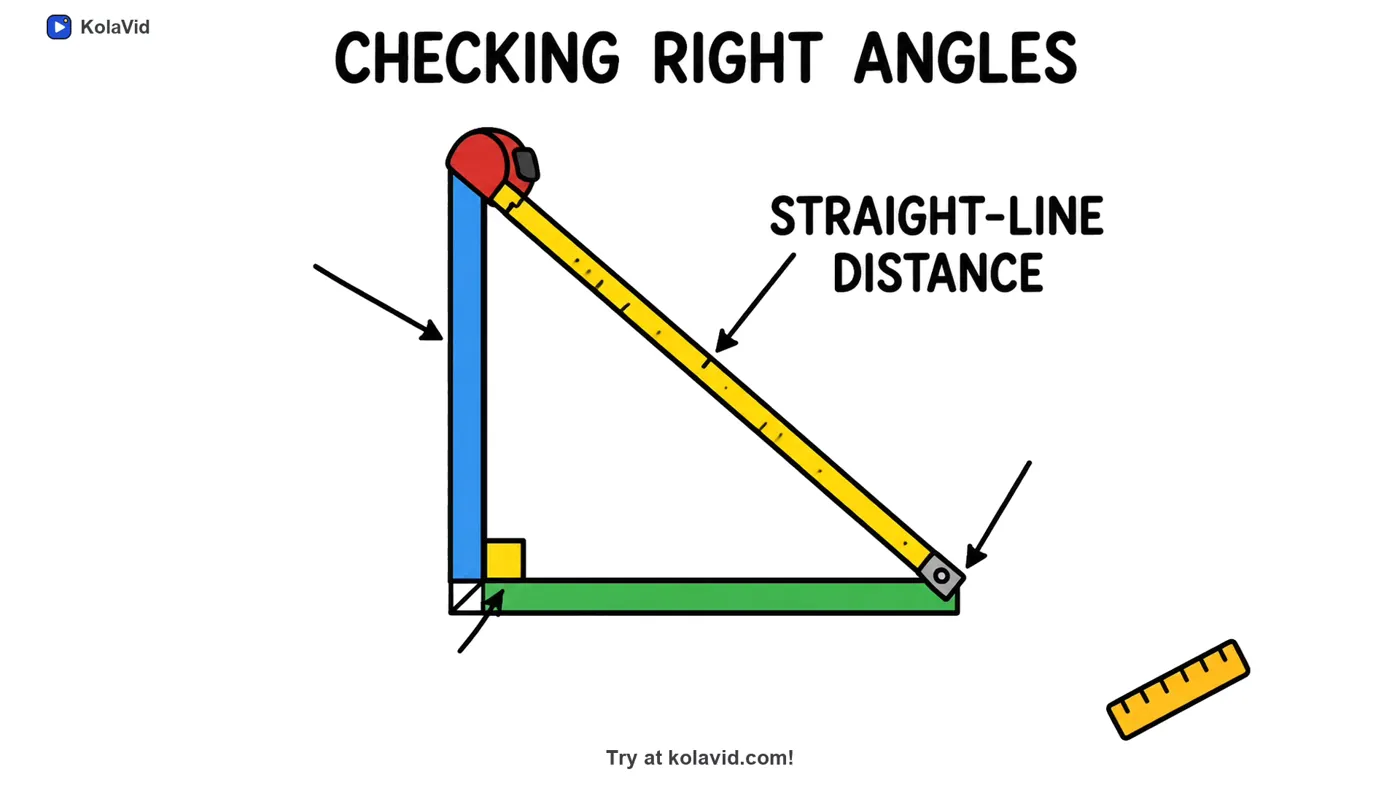
Choose the frame (landscape 16:9 for a meeting or email, vertical 9:16 or square 1:1 for phones), a female or male voice, the narration language and the length: 1, 2, 3 or 5 minutes. Free videos run up to 2 minutes; paid plans go up to 5. The video is usually ready in a minute or two. Here is a frame from a sample lesson, where one step of the explanation became one board:
Honest limits: there is no presenter or avatar, so if your face matters to the pitch, record yourself. There is no editing timeline, so to change a line you change the script and make the video again. You can try it from the AI whiteboard video maker page.
FAQ
How long should a video presentation be?
Three to five minutes for most purposes. A pitch or proposal works at around three minutes; a detailed update may need five. If it runs longer, move the detail into a document and link it.
Do I need to show my face in a video presentation?
No. A face helps when trust in you is part of the message, such as a founder's pitch or a manager announcing a change. For explaining a process or a proposal, narrated slides or a drawn explainer work just as well, and are easier to update.
What is a whiteboard presentation?
A presentation where each idea is drawn on a whiteboard as it is explained, instead of shown as a bulleted slide. It can be drawn live in a room, filmed, or made as a video with an AI tool that draws each idea in time with the narration.
Can I turn my PowerPoint into a video presentation?
Yes. PowerPoint can export a video with narration you record slide by slide, or you can upload the .pptx to an AI tool that builds a new video from the slides and speaker notes. Our guide to recording a lecture video covers longer talks, where pacing and sections matter more.
Start with your last deck
Take the last presentation you gave, sort its slides into keep, move and cut, and write a three-minute script with one main point and one clear ask. If you want to see it as a drawn video without recording anything, a free KolaVid account includes one 2-minute video with no card.