Google Docs and Slides to Video: KolaVid Add-on
Turn a Google Doc or Slides deck, speaker notes included, into a narrated whiteboard video with the KolaVid add-on. Install steps, examples, privacy, fixes.
To turn a Google Doc or Google Slides deck into a video, install the free KolaVid Whiteboard Video Maker add-on from the Google Workspace Marketplace, open your file, click the KolaVid icon in the right-hand side panel and press Make a whiteboard video. KolaVid opens in a new tab with your text ready, including your speaker notes from Slides, and makes a narrated whiteboard video where each drawing appears as the narrator says it.
No downloading, exporting or copying. Below: installing the add-on, using it in Docs and Slides, sending part of a file, examples to copy, what it can see, and fixes for common problems.
What the add-on does
The add-on is a side panel that reads the file you have open and hands its text to KolaVid. It does not change your document.
- In Google Docs it reads the text of every tab in the document, with the document's name first.
- In Google Slides it reads every slide in order: each slide's text (titles first, then top to bottom), then that slide's speaker notes. Skipped slides are left out, and a short line repeated on most slides, like a footer or a course name, is kept only once.
The panel shows you how many words it will send and a short preview before anything leaves Google. KolaVid then writes the narration from your material, draws the boards and voices it in the language you choose.
Install the add-on
- Open KolaVid Whiteboard Video Maker in the Google Workspace Marketplace and install it with your Google account.
- Or install it from inside a document: Extensions > Add-ons > Get add-ons, then search KolaVid.
- Open any Google Doc or Slides presentation. The KolaVid icon appears in the right-hand side panel. If it does not, reload the file.
- The first time, click the icon and authorise access. The add-on asks only for permission to read the file it is open in.
One listing covers both Docs and Slides, so you install it once. It is free; videos use your KolaVid credits.
Make a video from a Google Doc
- Open the doc with your lesson, policy or notes.
- Click the KolaVid icon. The panel says something like "All 95 words of this document will go to KolaVid" and shows the start of the text.
- Press Make a whiteboard video.
- kolavid.com opens in a new tab with your text in the composer. Check it, pick the length, voice and narration language, and press Make. If you are new to KolaVid, sign up and your video starts straight away.
- The video is usually ready in a few minutes, and you can watch it being drawn.
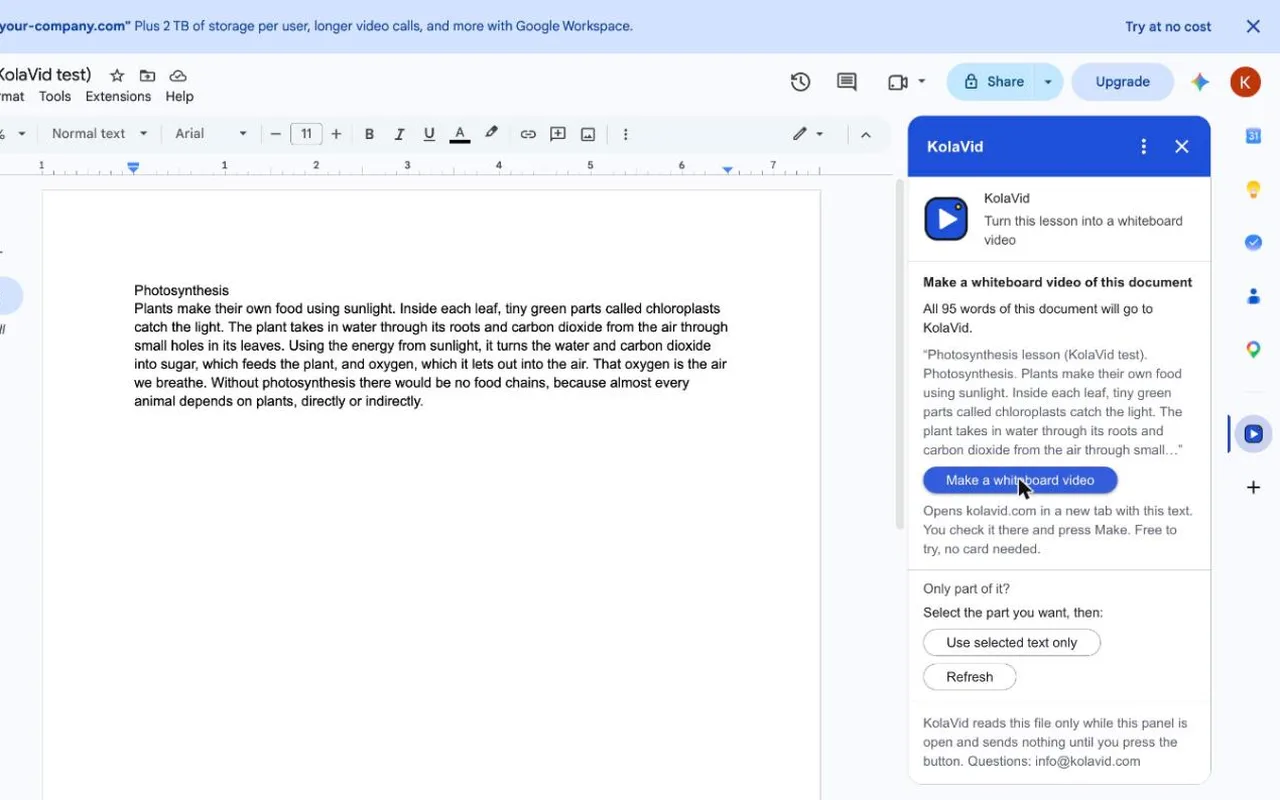
Edited the doc since opening the panel? Press Refresh.
Make a video from Google Slides
The steps are the same, and the speaker notes are the useful part. Slide text is usually short headings and bullet points; the notes are where you wrote what you would actually say. KolaVid uses both, slide by slide, so a deck with good notes gives a video that follows your lesson in order.
Two tips before you press the button:
- Skip the slides you do not want. Skipped slides are left out, so you can hide a title slide or an appendix without deleting it.
- Name the deck clearly. The file name goes first, unless it is "Untitled presentation" or starts with "Copy of". "Year 9: How the heart pumps blood" tells KolaVid more than "Lesson 4".
The add-on reads text in text boxes, shapes, groups and tables. It does not read pictures, so if a diagram carries the key idea, say it in the speaker notes.

Send only part of the file
A whole unit plan makes a long, crowded video. Often one section is what you need.
- In Docs: select the part you want, then press Use selected text only.
- In Slides: select some text, a few boxes, or whole slides in the slide list on the left, then press Use selected text only.
The panel shows a new card for the selection with a Make a video of the selection button. Changed your selection? Select again and press Refresh.
Examples to copy
When your text opens in the composer, you can add a line at the top before pressing Make. Say who is watching and what they should take away. These are starting points.
1. A lesson doc into a homework video
For Year 7 students meeting this topic for the first time. Keep it to the main idea and one everyday example. End with a question for them to think about.
Good for flipped lessons, where students watch at home and practise in class. See flipped classroom videos for how to plan them.
2. A slide deck for a student who missed the lesson
Open the deck you taught from, with your speaker notes, and add:
A catch-up video for students who missed today's lesson. Follow the slides in order and explain each step as I did in class.
3. One section for revision
Select the section on a single concept, press Use selected text only, and add:
A 1-minute revision video. Recap the three key points and the most common exam mistake.
4. A policy doc into staff training
A training video for new staff. Explain what they must do, in order, and why. Plain words, calm tone.
The training page has sample videos made from procedures like this.
5. Narration in another language
Narrate this in Spanish for families who speak Spanish at home.
The narration language list includes Spanish, Portuguese and many more.
What the add-on can see
The add-on uses Google's "current document only" permissions. In plain words:
- It can read the text of the file you open it in, and nothing else in your Drive.
- It reads that text only while its panel is open, and it does not change the file.
- It stores nothing and sends nothing until you press the button.
- Then the text goes to kolavid.com, which keeps it for up to an hour so it can open it in your KolaVid tab, and deletes it after that.
From there, KolaVid treats it like any text you paste on kolavid.com, as described in the privacy policy.
Limits
- Document size: documents up to 100,000 characters go whole. A longer one is cut at a full sentence, and the panel tells you so.
- Video length: free videos run up to 2 minutes; paid plans go up to 5. A whole textbook chapter will be summarised, so send one section per video if you want detail.
- Mobile: the add-on works in Docs and Slides in a web browser, not in the Docs and Slides phone apps.
- Credits: whiteboard videos cost 1 credit a second. A free account gets 120 credits, one 2-minute video, with no card. See pricing.
- Editing: there is no editing timeline in the video. Change your doc or your request and make it again.
Troubleshooting
Google says "Sorry, unable to open the file at present" while installing. Your browser is signed in to several Google accounts. Install from a private window, or from inside a document with Extensions > Add-ons > Get add-ons, then search KolaVid.
I can't see the KolaVid icon. Reload the document. The icon sits in the narrow bar on the right-hand side of Docs and Slides.
My school account won't let me install it. Many school domains only allow add-ons their administrator has approved. Ask your IT admin; the add-on can be installed for a whole school from the Google Admin console.
The panel says there's no text. Add your lesson and press Refresh. For a selection, select the part again and press Refresh.
KolaVid says the document link has expired. A long document waits for up to an hour. Go back to the file and press the button again.
Only the start of a long document arrived. In the rare case the add-on cannot hand over a long document, it opens KolaVid with about the first 200 words instead. Press the button again, or send the part you need with Use selected text only.
For anything else, the support page has common answers and the email address.
FAQ
Is the KolaVid add-on free?
Yes. Installing it costs nothing. Videos use KolaVid credits, and a new account includes one 2-minute video with no card.
Does it read my speaker notes?
Yes. In Slides it reads each slide's text and then its speaker notes, in slide order. KolaVid also reads speaker notes from PowerPoint files you upload on kolavid.com.
Can it see my other files?
No. It uses the narrowest permission Google offers, which covers only the file the add-on is open in, and only while its panel is open.
Can I make a video without the add-on?
Yes. You can download the doc and upload it, or paste the text on kolavid.com. Our guide to turning a Google Doc into a video covers that route and how to cut a long doc down to a script.
Try it on next week's lesson
Open the doc or deck you are teaching from next, press the KolaVid icon, and make a 2-minute video from one section. If you also use Chrome, Slack or Telegram, see all the ways to use KolaVid. The teachers page has more sample lesson videos.